Performing a Year End Close
Procedure
- Open the Working Papers client file that you would like to close.
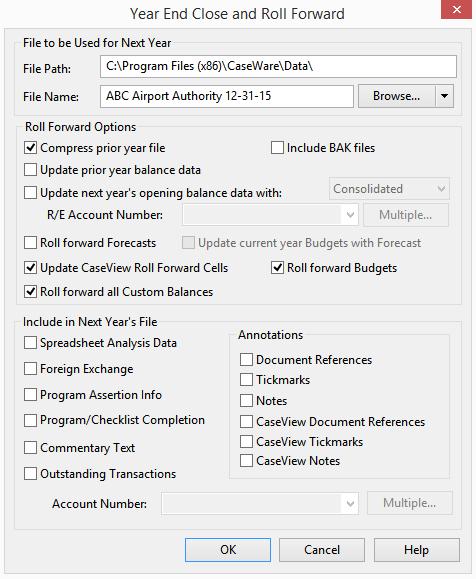
- Select Engagement | Year End Close to open the Year End Close and Roll Forward dialog.
- The File Path defaults to the directory defined under Tools| Options| Default Paths| Client File Path. You should ensure this file path is defined before performing the year end close.
- In File Name, provide the name of the NEW file. We recommend using your organization’s name and year end, for example ABC Airport Authority 12-31-15.
- Ensure the following fields are selected:
- Compress prior year file - this will create a zip file of the prior year file.
- Roll forward Forecasts
- Update CaseView Roll Forward Cells - this ensures that all manually input data in the financial statements properly moves into the prior year column.
- Roll forward Budgets
- Roll forward all Custom Balances
- Click OK to process the Year End Close
The file you selected in step 1 will close, compress and the new file will open.
Notes
- Empty folders or folders with documents that are not on the Document Manager will be copied to next year's file.
- If the source file is protected and has a security ID set, that security ID overwrites the security ID of the destination file.
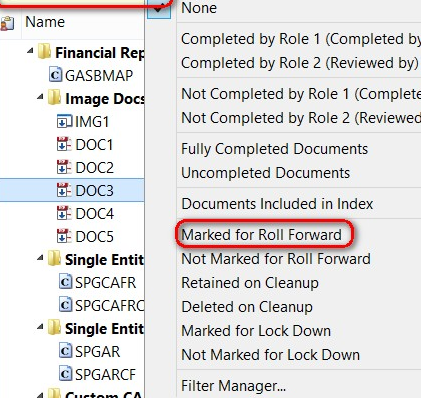
- Documents and Issues are rolled forward based on whether they have the Roll Forward checkbox selected in their properties or not. To view the items that are marked to roll forward, while in the Document Manager, on the View menu, select Filter By and then Marked for Roll Forward.