
Adding and modifying rounding relations
In the financial statements document, you can use the rounding relations functionality to compare balances in two cells and store the difference in a specified third cell (called the plug cell). You can also use rounding relations in the Management Reporting and Management Discussion & Analysis (MD&A) documents.
To apply rounding relations:
-
Open the Financial statements document.
-
On the ribbon, click Global Setup | Apply relations. The Rounding dialog displays.
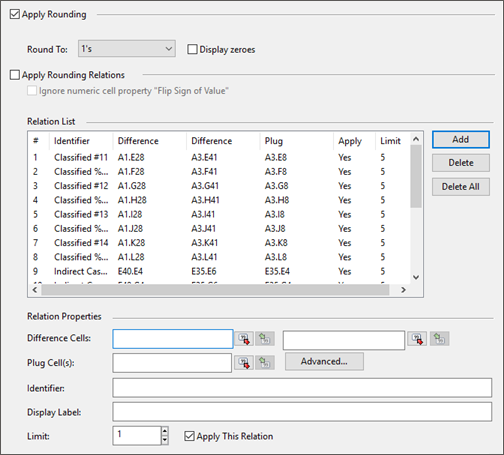
-
To add a new rounding relation, click Add.
Note: To modify an existing rounding relation, select it in the Relation List, then modify the Relation Properties. -
Complete the fields in the Relation Properties.
- Difference Cells: In the first field, enter the first cell (Cell A) to compare in the rounding relation. Click the Pick Cell icon to pick a cell by clicking on it in the document. In the second field, enter the second cell (Cell B) to compare.
- Plug Cell(s): Enter the cell where the difference between Cell A and Cell B will be stored. Click the Pick Cell icon to pick a cell by clicking on it in the document. If necessary, create conditional plug cells. >>How Do I?
- Identifier: Enter a brief description of the new rounding relation.
- Display Label: Enter a description to display in the Recalculation Error dialog when a rounding error occurs. This label helps you identify the area of the document where the error is located.
- Limit: Enter the rounding limit. Any rounding differences that exceed this limit will not be rounded. An error message indicating that there is a rounding relation error will display if this occurs.
-
Click OK.
You have applied the rounding relation.
Note: If an active relation exceeds the rounding limit, then no relations will be applied.
This online help system applies to all Financials products. Not all features are available in all products.