
Use the GCS Sherlock Integration Form
The GCS Sherlock Integration form is a custom SE form that enables automated extraction of SE Checklist procedure responses to the Sherlock data lake, with no user interaction required at the engagement level.
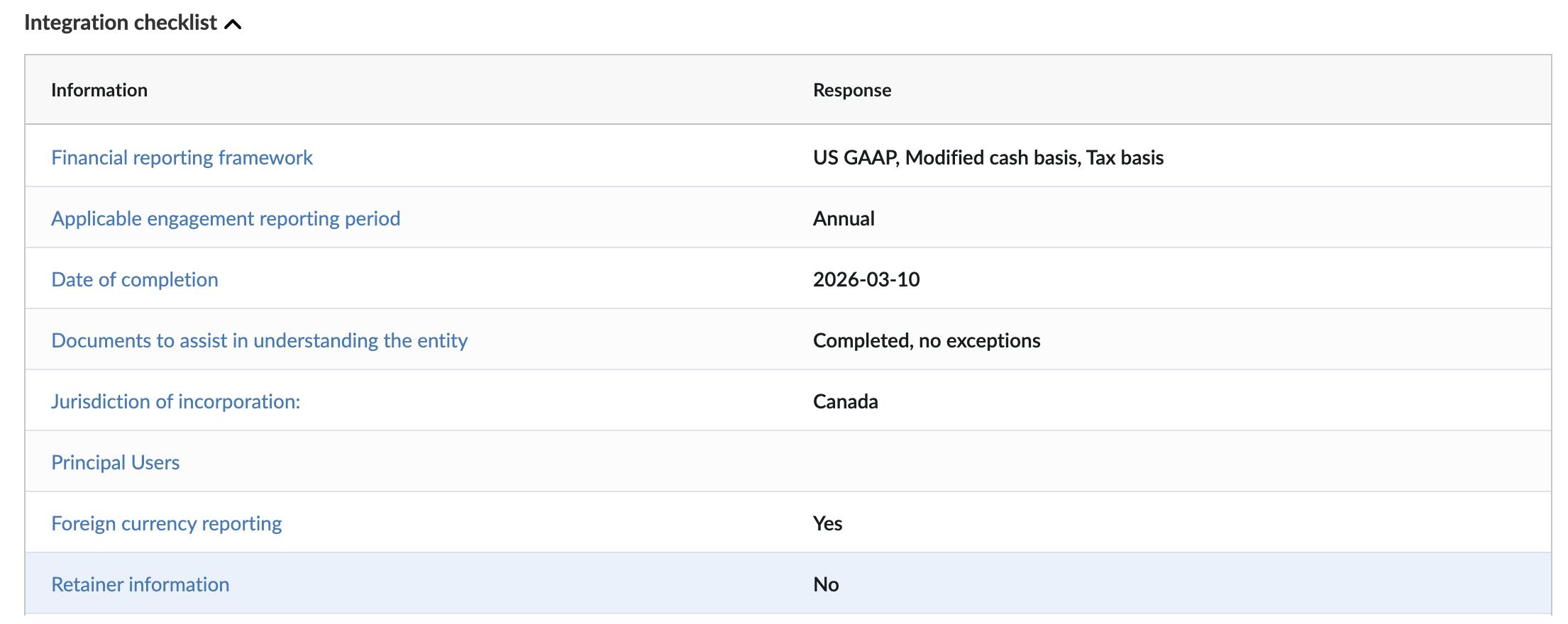
The GCS Sherlock Integration form:
-
Seamlessly integrates into your solutions without extensive development effort
-
Automatically reads configured procedure responses when an engagement is opened
Firm and network authors can access the form at the template level and select the procedures that should be automatically pushed to Sherlock. These selected procedures will be read-only in new engagements created from the updated template.
Step 1: Navigate to the SherlockInt Form
Open your template in Caseware SE and navigate to the GCS Sherlock Integration form. Depending on your role, you will see your corresponding editable table (FA or NA). If you do not have GCS Sherlock Integration form, add it through the "+" sign on the Document page.

Step 2: Enter the Checklist Document URL
In an editable table row, fill in the Checklist Document URL column by pasting the URL of the SE checklist document that contains the target procedure. (URL example: /checklist/Qbkj9uP-R2-ijMwsOy3sAg)

Step 3: Load Available Procedures
Click the Refresh button (↻) on that row to load the available procedures from the checklist document you entered. The Select procedure dropdown will be populated with all procedures from that document.
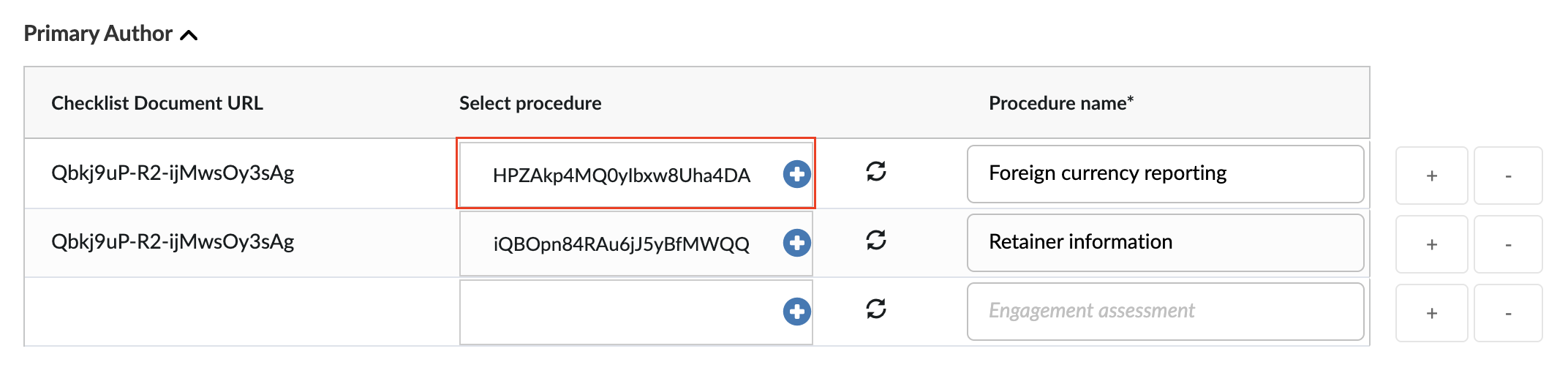
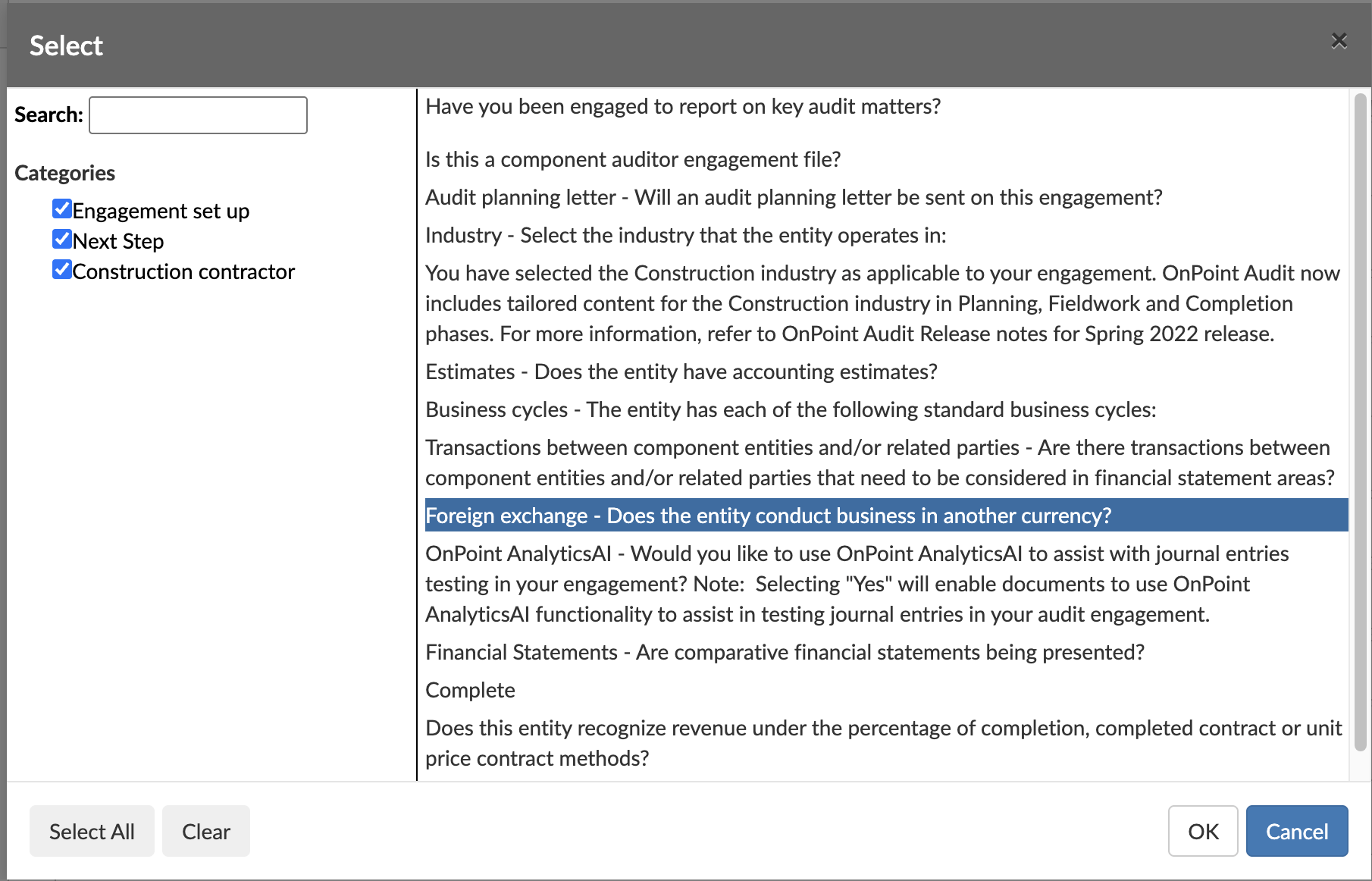
Step 4: Select a Procedure
In the Select procedure dropdown, choose the procedure whose response should be automatically sent to Sherlock.
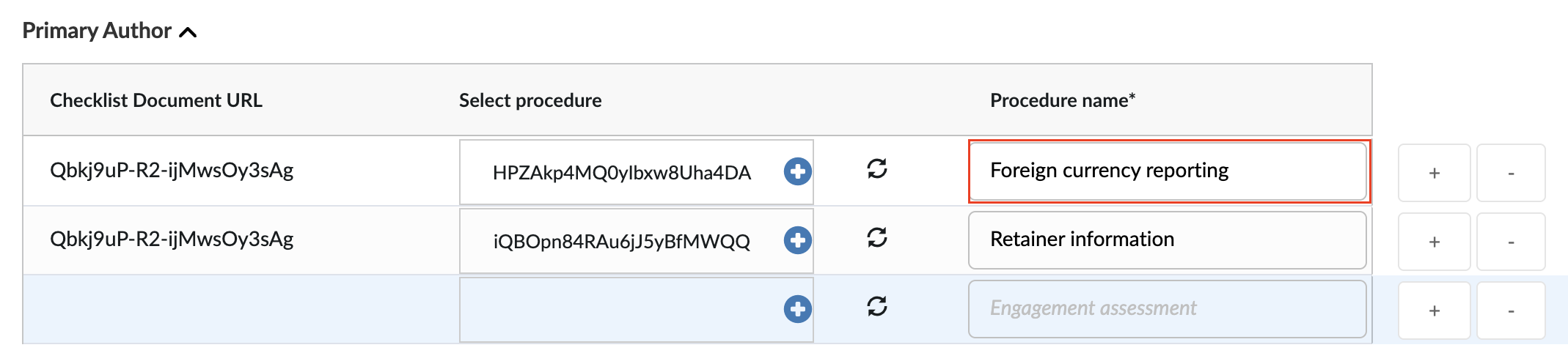
Step 5: Set the Procedure Name
Optionally fill in the Procedure name column with a custom display name. This name is used as the column label in Sherlock.
Notes:
-
Procedure names must be unique across all tables. If you enter a duplicate name, you’ll see a dialog and your entry will be reverted.
-
Changing an existing procedure name will display a confirmation dialog before taking effect, because the name is used as the Sherlock field key.
Step 6: Save the Template
Save the template. The selected procedures will be tracked by the form and their responses will be pushed to Sherlock automatically when engagements are opened.
What happens at engagement runtime:
-
When a user opens an engagement created from this template, the form reads each configured procedure's response and pushes it to Sherlock automatically.
-
Any future change to a procedure response triggers a live update (debounced by 1 second).
-
If a procedure becomes hidden due to a visibility change, it is automatically removed from the tracking table.