Substantive sampling – Test of details – Confidence level

Content in this topic requires OnPoint Audit.
The Substantive sampling – Test of details – Confidence level form incorporates your risk assessment from the Risk & controls tab to automatically calculate the confidence level. The calculated confidence level flows to the Substantive sampling – Test of details – Sample size form to determine the required sample size. The forms are available across the relevant fieldwork sections in OnPoint Audit.
Three primary documents guide you through the substantive sampling workflow:
-
The Substantive sampling – Test of details checklist
-
The Substantive sampling – Test of details – Confidence level form
-
The Substantive sampling – Test of details – Sample size form
Complete the substantive sampling workflow
To complete the substantive sampling workflow:
-
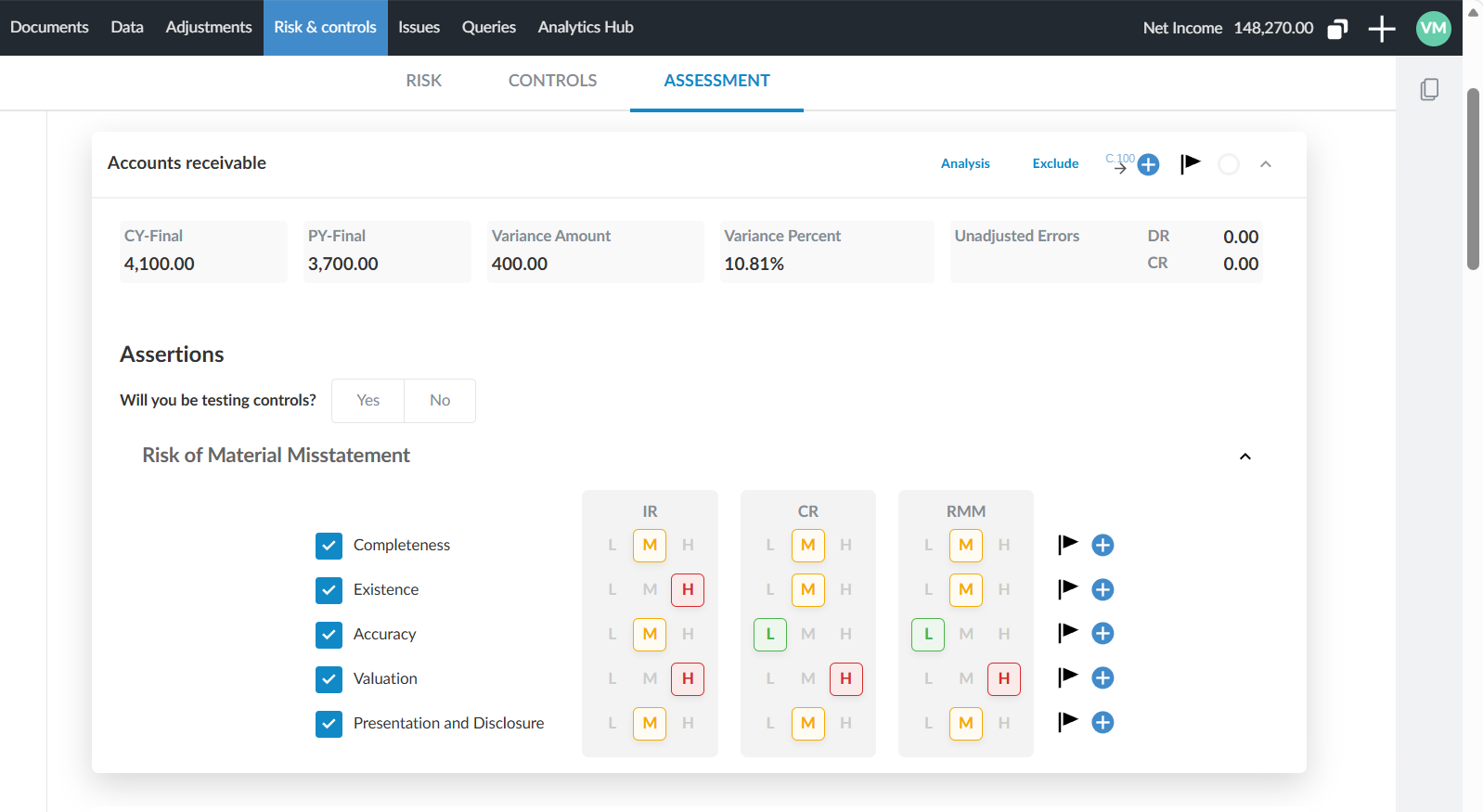
Navigate to the Risk & controls tab and complete the risk assessment for the relevant financial statement areas. Your risk assessment flows through to the OnPoint Audit Confidence Level form automatically. To use this automation, complete the risk assessment for a financial statement area before you start sampling that area.
-
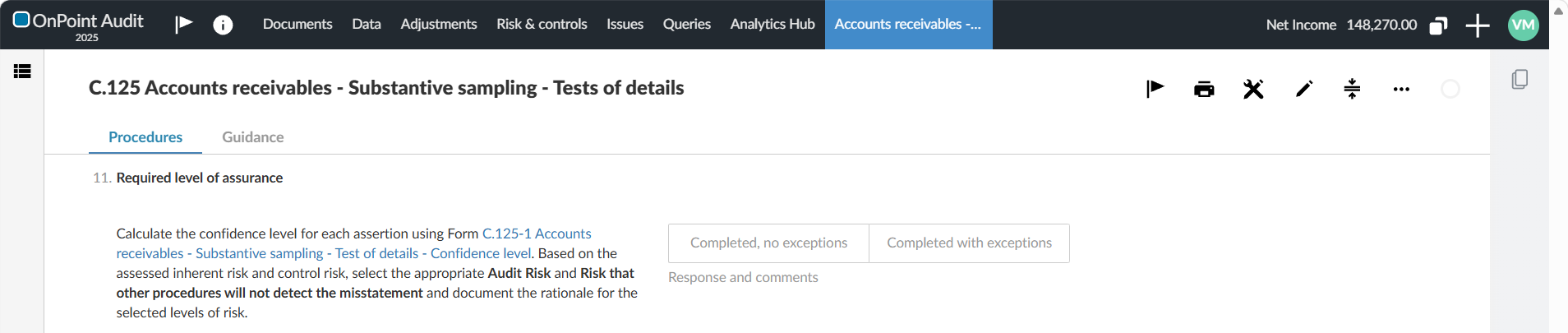
To begin sampling for a specific financial statement area, open any of the Substantive sampling – Test of details checklists (for example C.125 Accounts receivables – Substantive sampling – Test of details) and scroll down to the new Required level of assurance procedure that has been added. The new procedure directs you to the corresponding Confidence level form (for example, C.125-1 Accounts receivables - Substantive sampling - Test of details - Confidence level).
-
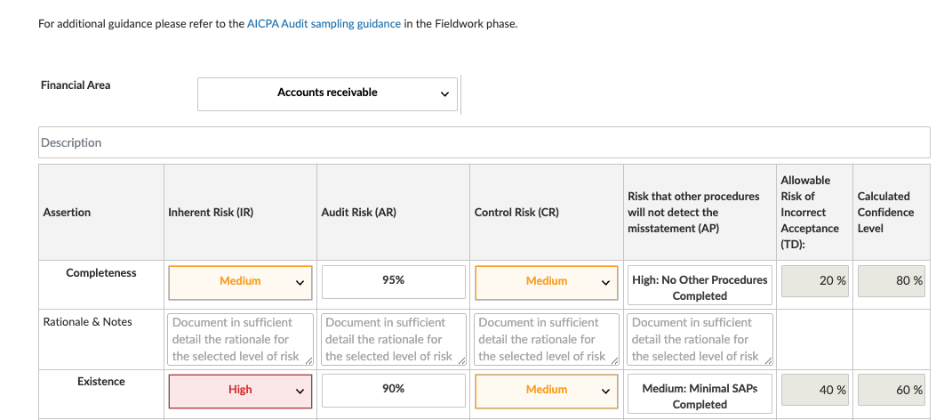
Before completing the new procedure, navigate to the Substantive sampling – Test of details – Confidence level form (for example, C.125-1 Accounts receivables - Substantive sampling - Test of details - Confidence level) and select the Audit risk and then select the Risk that the other procedures will not detect the misstatement. The Allowable Risk of Incorrect Acceptance (TD)* and confidence level calculate automatically.
-
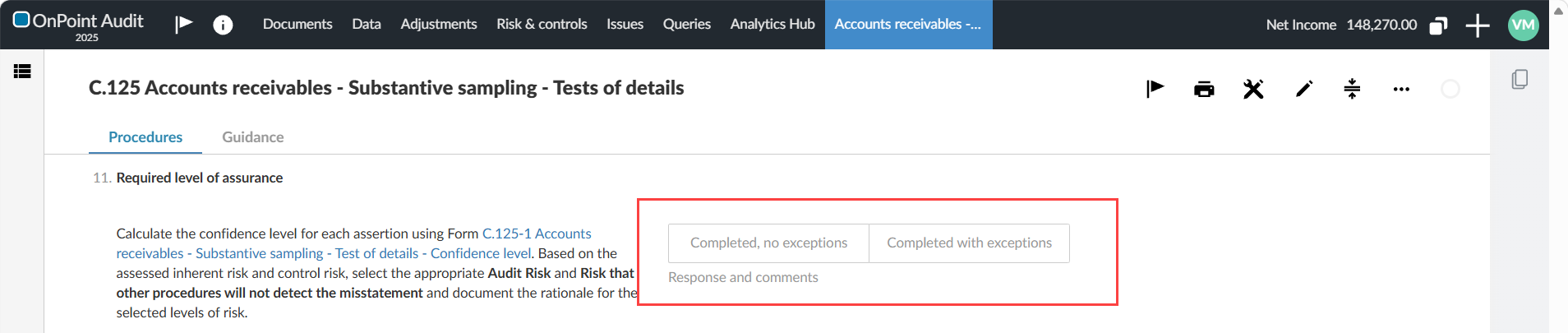
Return to the Substantive sampling – Test of details checklist and select Completed, no exceptions or Completed with exceptions to complete the procedure.
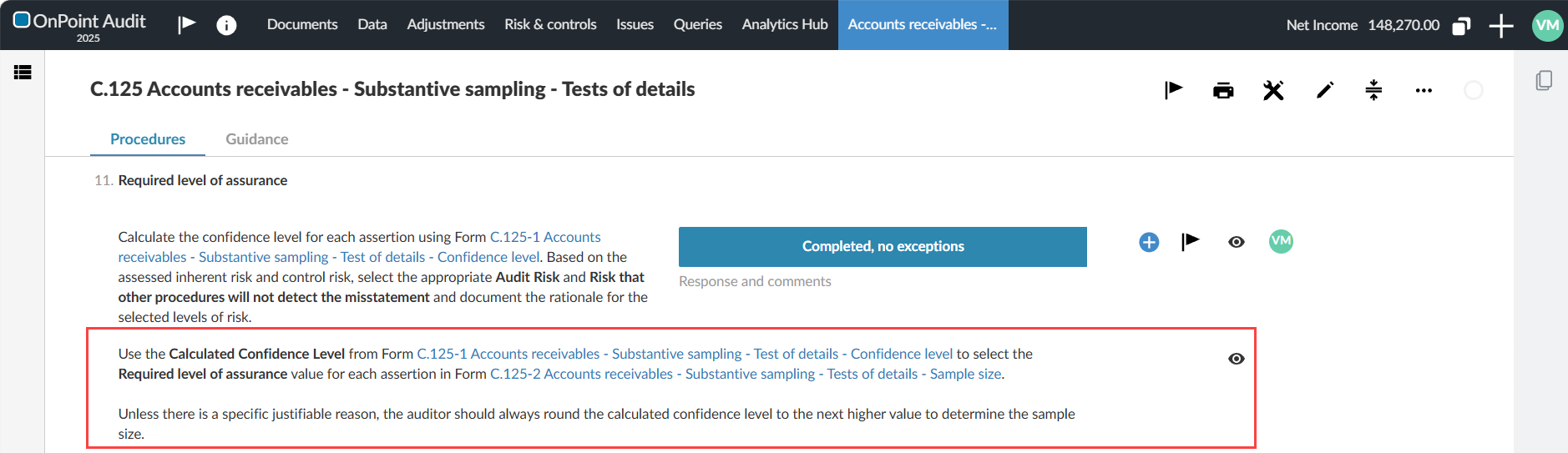
A paragraph appears directing you to use the calculated confidence level to populate the Required level of assurance field on the Substantive sampling – Test of details – Sample size form.
-
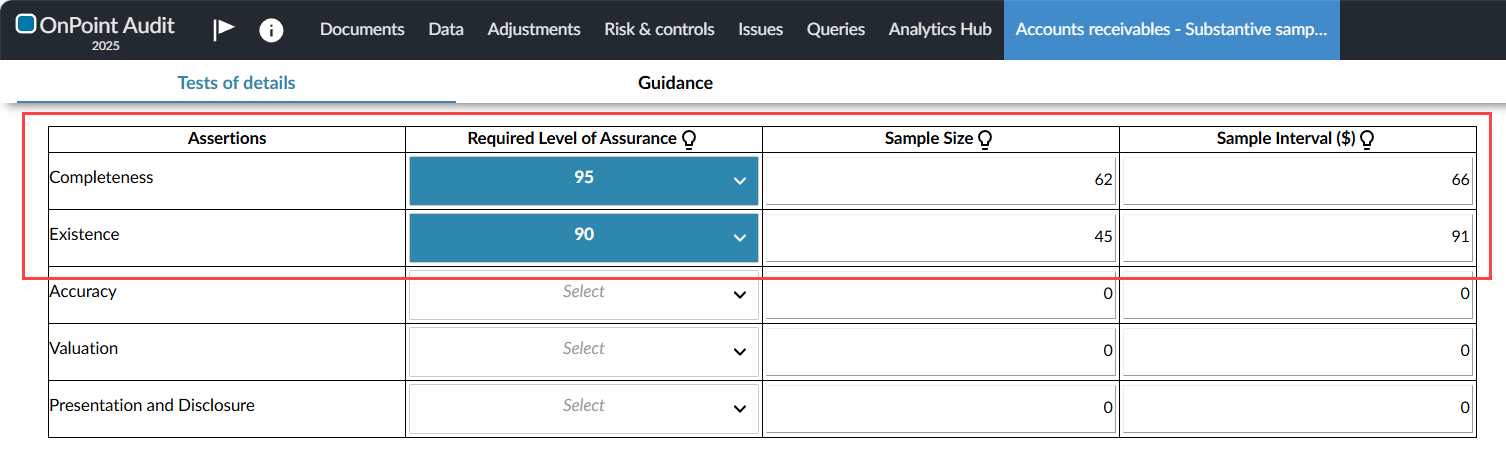
In the Substantive sampling – Test of details – Sample size form (for example, C.125-2 Accounts receivables - Substantive sampling - Tests of details - Sample size), enter the confidence level calculated in the Confidence level form under Required Level of Assurance. The Sample size and Sample Interval calculate automatically.
*TD: Test of Details — the allowable risk that a test of details will fail to detect a material misstatement.
-
Once the sample size is calculated, you can optionally generate your sample selection using Transactions on the Data page.
Generate the sample selection
To generate the sample selection:
-
Navigate to Transactions in the Data page.
-
Ensure your previous selection is still active. If not, filter your transactions to select your population.
-
Select Sample Selection and then select Monetary Unit.
-
Insert the value of the calculated sample size. You can enter a value up to 1000.
-
Insert the value of your High amount threshold. Transactions that are greater than or equal to your high amount threshold (to a maximum of 1000 transactions) are excluded from the population and added to the sample selection result.
-
Select Generate. The list of transactions is generated.
-
Select Export.
-
Select the Nature of test and then export your results to a CSV file.
-
Use the Accounts receivables - Substantive sampling - Tests of details - Results placeholder to upload the testing results. You can also drag and drop the CSV file into the Documents page.
Insert additional instances of the form
To insert additional instances of the form:
-
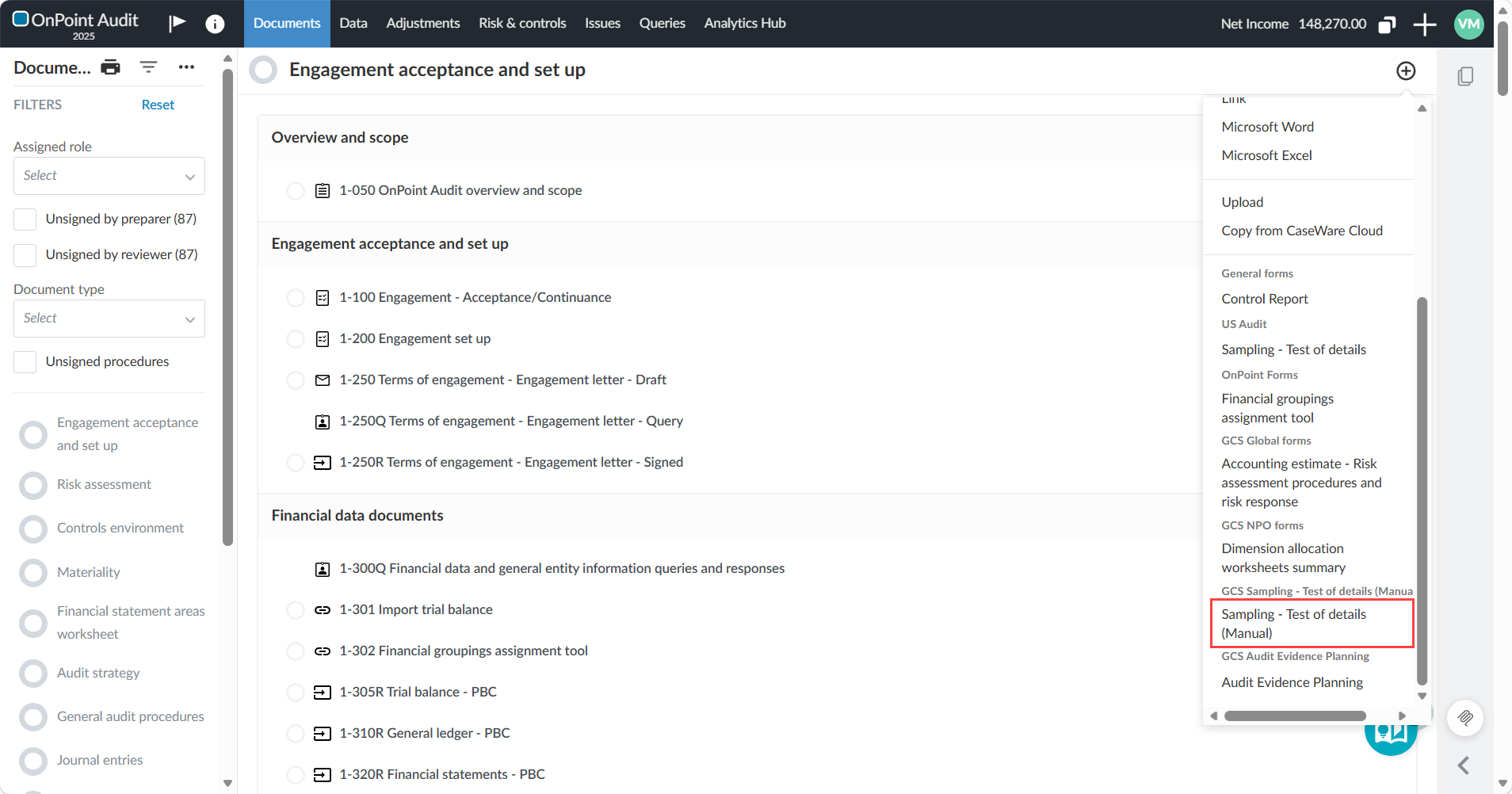
Select the Create a document (
 ) icon.
 -
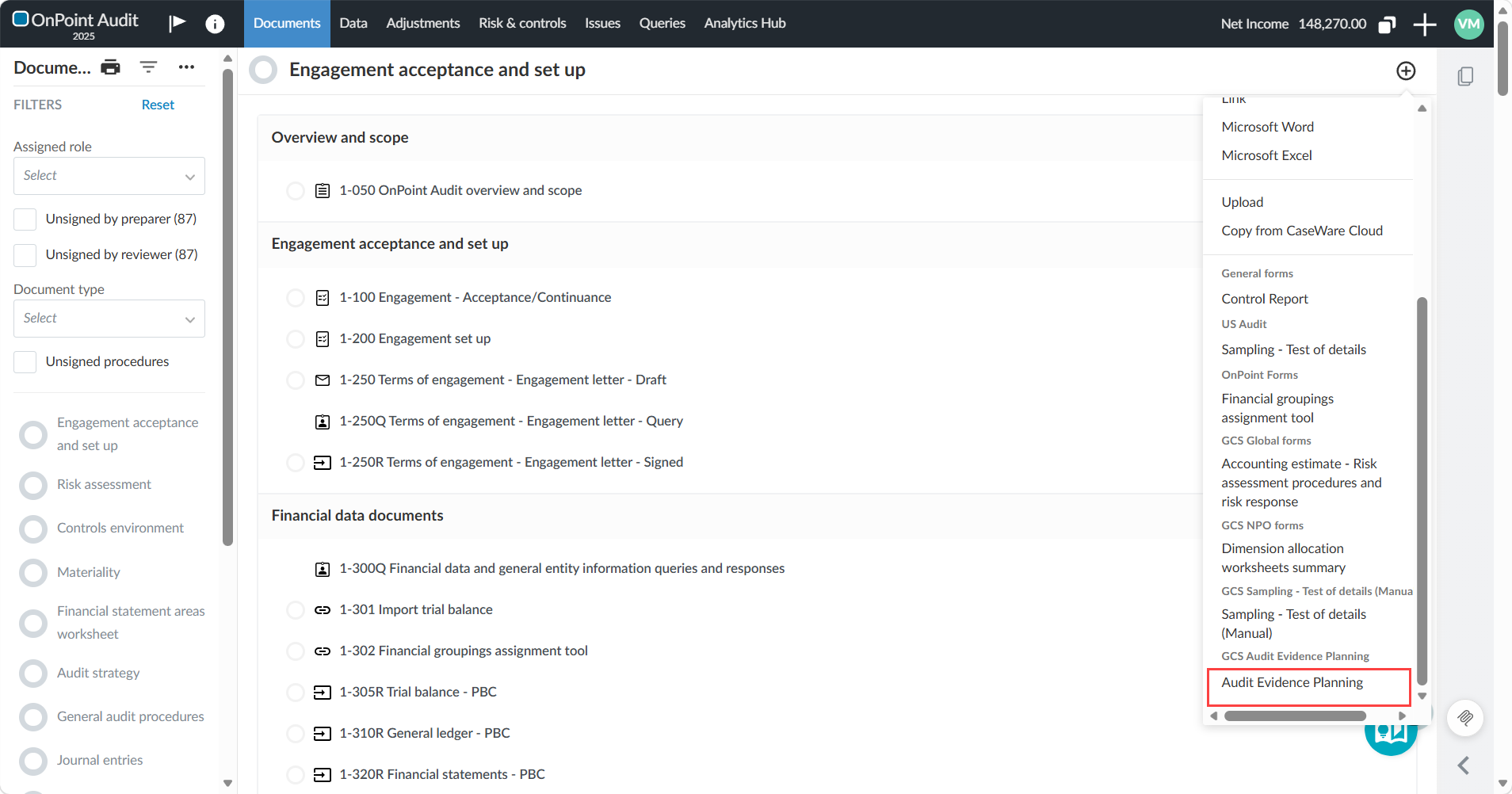
Under GCS Sampling – Test of details (Manual) forms, select Sampling – Test of details (Manual). This adds the Substantive sampling – Test of details – Confidence level form to your fieldwork section.
OnPoint Audit also includes the Audit Evidence Planning form. Unlike the Confidence level form, the Audit Evidence Planning form does not include the Audit Risk column or the Calculated Confidence Level column. Both forms help you arrive at the required level of assurance for the Substantive sampling – Test of details – Sample size form. You can choose which form to use based on your firm's judgment and preference.
To insert the Audit Evidence Planning form:
-
Select the Create a document (
) icon. -
Under GCS Audit Evidence Planning, select Audit Evidence Planning.