
Print the financial statements document
You can print the financial statement and Areas within it. The Print option converts the document to a PDF or PDF/A format which you can print or save.
You can customize the following elements in your Print Settings:
-
Letterhead
-
Dynamic Tables
-
Page-level table header
-
Header and footer
-
Page Settings
-
Margins
-
Table of Contents
-
Page numbering
To print a financial statement:
-
Open a financial statement, then go to the Document Map.
-
Select Settings (
 ) | Document Print Settings to apply print settings for the financial statement.
 -
You can apply enhanced custom print settings for notes or an area:
-
Select Settings (
) | Notes Print Settings to apply settings for notes. -
Select an Area | More actions (
 ) | Edit Print Settings to apply settings for an area.
-
-
If available, you can apply a page-level table header:
-
Under Header & footer, select Page-level table header to turn it on or off.
-
Select the table header to be used.
-
Configure its column structure, as needed.
-
-
Select Print | Print Preview to preview the PDF file.
-
In the Print Preview page, you can:
-
Select Print Settings to make changes to settings and view them.
-
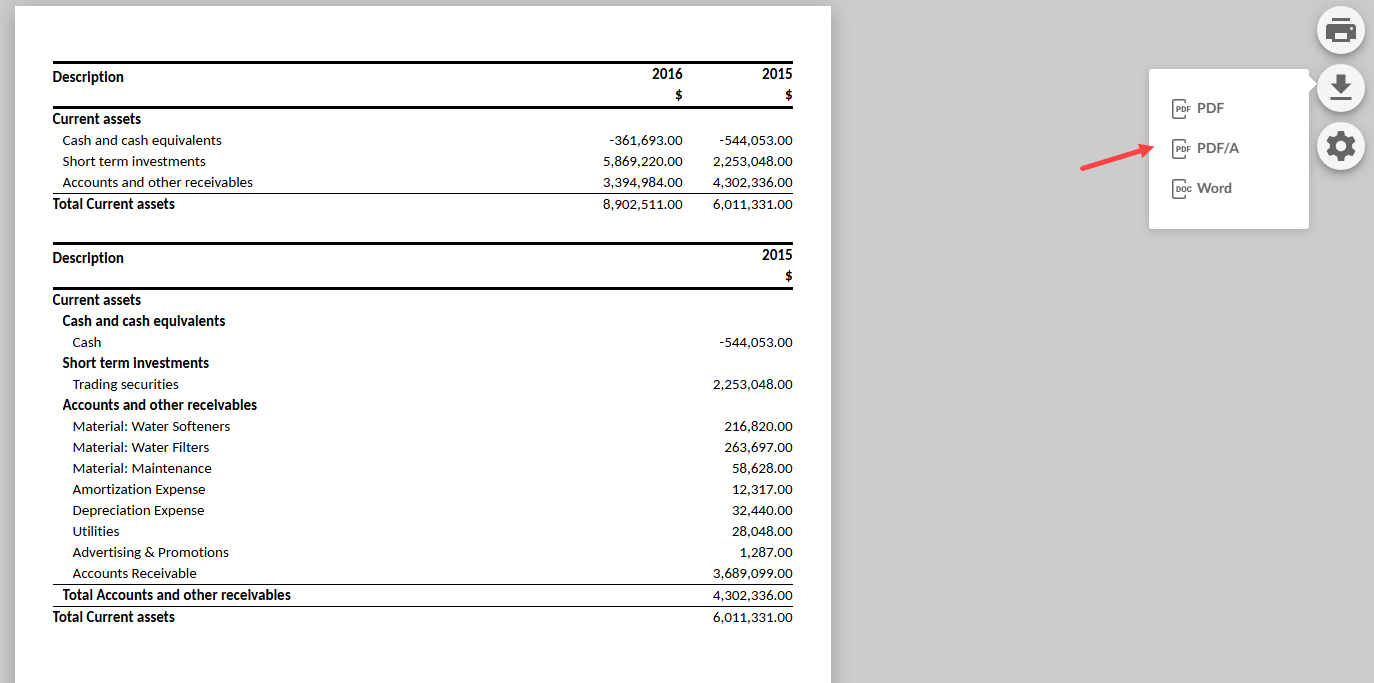
Select Print to print the document or the downward arrow to download as PDF, PDF/A or Word.
-
-
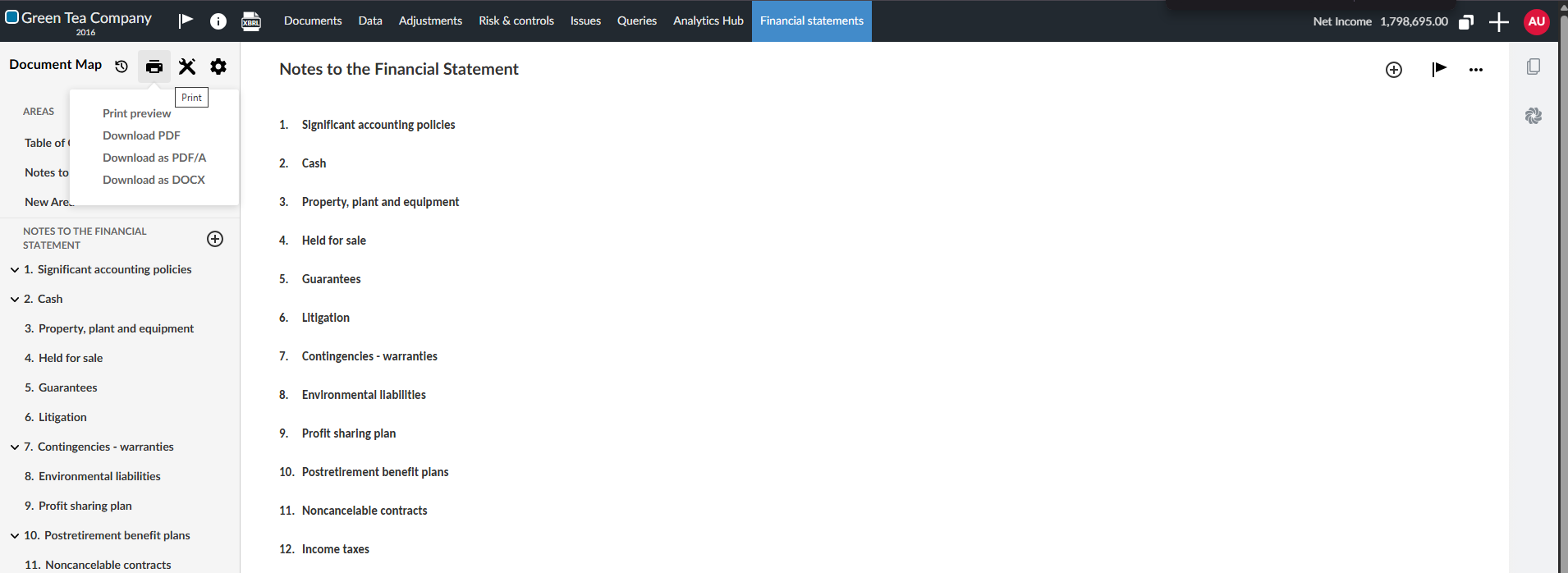
You can also download directly from the Document Map toolbar without entering print preview.
-
Select Print | Download PDF, Print | Download PDF/A, or Print | Download Word.
-
From Print Preview:
From the Document Map:
Notes:
-
If a bulk print option is available, the drop-down at the Print icon also displays the available document groups.
-
If you have applied a watermark, the download options display as Download PDF (WMK) and Download PDF/A (WMK).
-
If there are text or field placeholders that have not been replaced, you get a warning when you select Print.
To merge print areas
You can merge areas in the financial statement to reduce the number of pages for printed reports. This option is available in each individual area of the financial statement in Print Settings, under Page Settings. The merge applies only when the financial statement is viewed in Print Preview or downloaded as a PDF.
When you merge an area with a previous one, all print settings are disabled for that area, except the table of contents settings.
Dynamic tables
-
Rows and columns that won't be included in the printout display in gray in the Document Map. To learn more, see Control visibility in dynamic tables and Edit table columns in the financial statements.
-
Empty or zero-balance rows and columns are automatically hidden in the print preview, the downloaded PDF and printed document.
Page-level table header
Print settings include page-level table header. Page-level table header consolidates shared table header information into a page-level header so it appears once at the top of the page. Tables that use the page-level header appear without their own table headers. This creates a cleaner layout when users review printed or exported documents.
Depending on which Print Settings you are accessing, you can choose any of the dynamic tables that are part of that area by selecting it from the drop-down in the Print Settings.
To configure a dynamic table as a page-level table header
Once the page-level table header is enabled on your product, you can configure a dynamic table to act as a page-level header.
-
On any dynamic table, select More Actions (
) | Edit dynamic table. -
Select the Settings icon (
). -
Choose the Header behavior from these options:
-
Default: Uses the page-level header when it's enabled.
-
Show: Always shows the table header.
-
Hide: Always hides the table header.
-
Page-level table headers are available in documents that use the financial statements layout, including letters and memos.
Page-level table headers appear based on the content on each page:
-
If the page includes at least one eligible dynamic table, the page-level table header appears and the table appears without its own header.
-
If the page includes text only, only the text header appears.
-
If the page includes only non-standard tables, only the text header appears because non-standard tables are not eligible.