
Request a review and signoff
To notify the reviewing staff member that a document is ready for review, add a document issue and assign it to them.
To add an issue:
-
With the document open, select the Issue icon (
 ).
). -
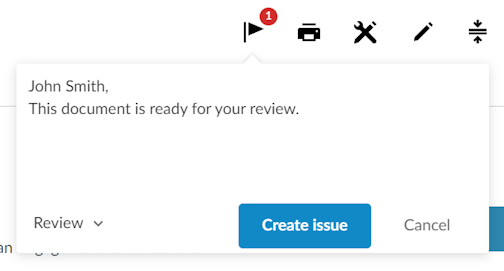
In the text field, enter a message for the reviewer.
Tip: You can tag a staff member by entering @ followed by their name. If they have access to the document, their name displays in the Quick List. Select their name to tag them in the issue's description. -
In the drop-down, select the issue type.
-
Select Create issue.
-
The issue displays in the document. It also displays on the Issues and Documents page.
When all required roles sign off on a document, a green check mark displays next to the document ( ) on the Documents page.
Note: You can change the signoff workflow for a document by creating custom signoff roles and schemes. To learn more, see Define signoff roles and Set up signoff schemes.