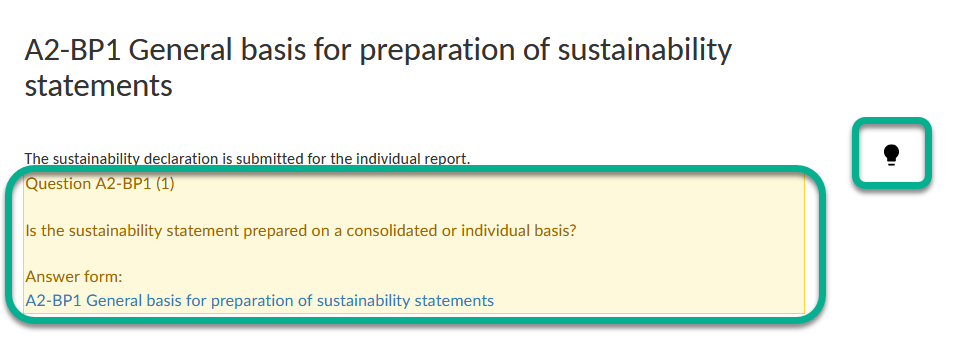
Creating a Sustainability Report
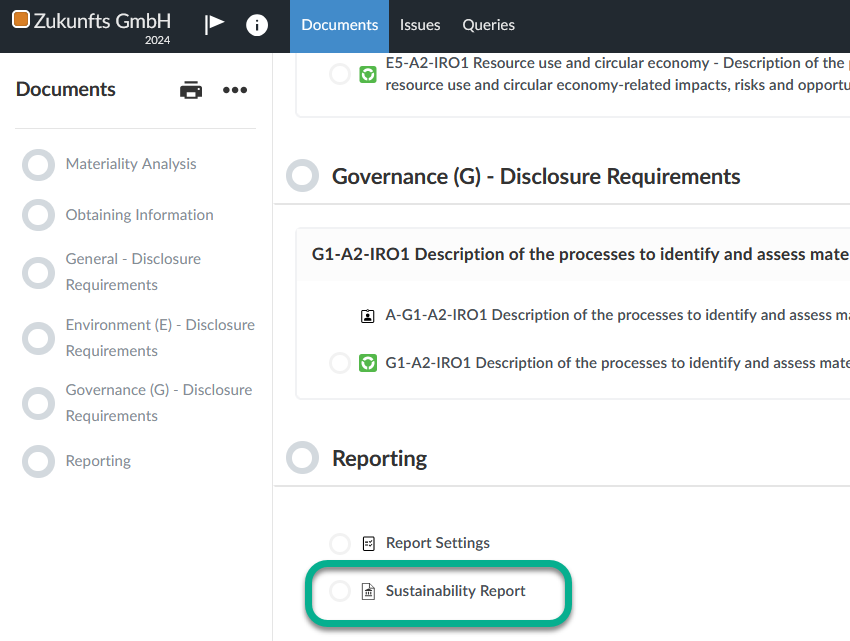
The sustainability report can be opened by clicking on the Sustainability Report entry in the Documents Page.
The report displays your answers to the disclosure requirements and the associated questions.
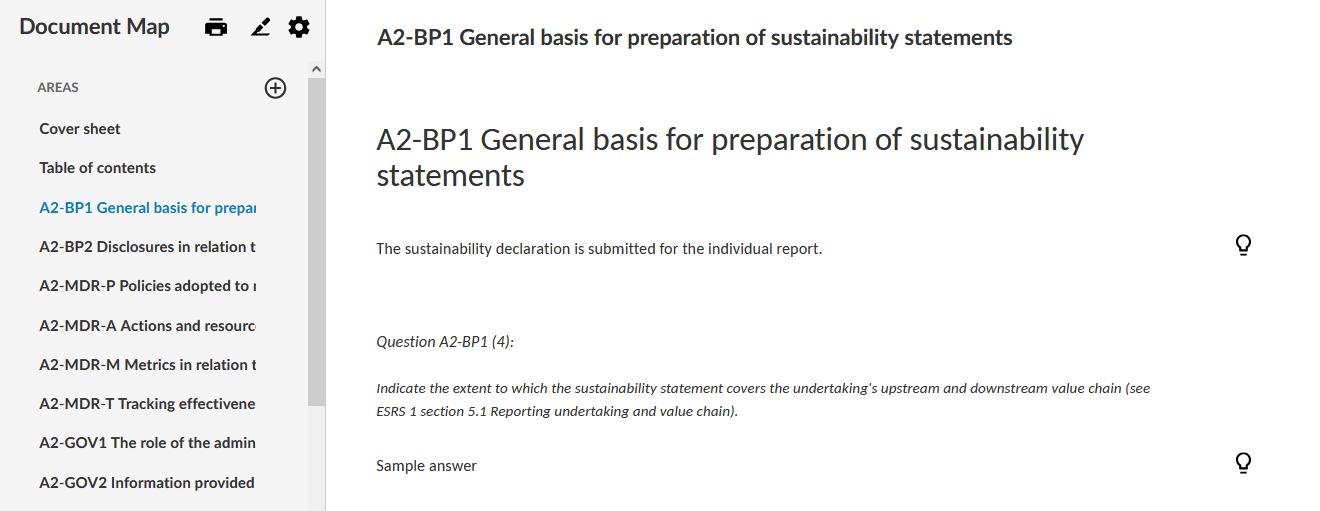
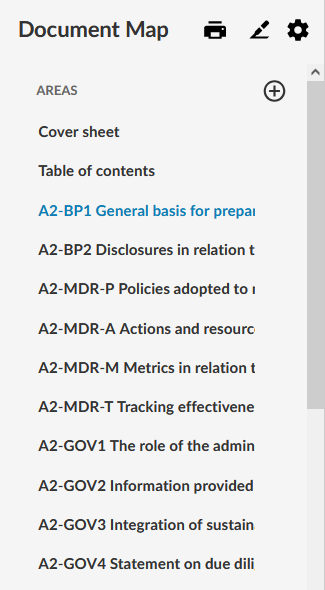
Use the Document Map on the left side to show the different parts of the report.
Several customization options are available to you, which are listed below.
Adding text
Click into a text field and add text.
Note:
You cannot edit your answers here. If you want to edit an answer, open the corresponding document in the disclosure requirements.
Excluding areas
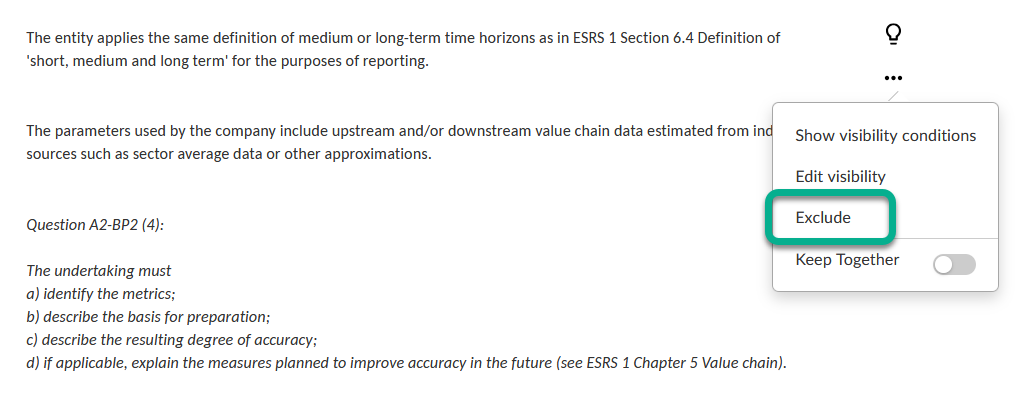
To exclude content, click on the More actions symbol (three dots) next to the area and select the Exclude option.
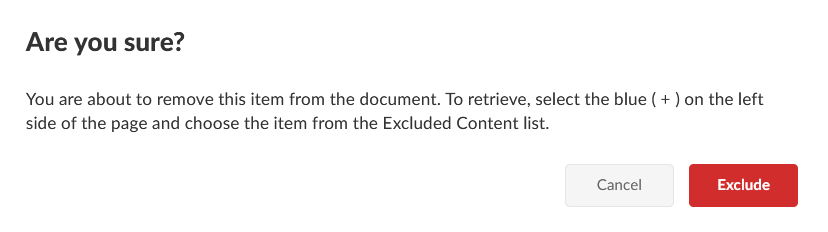
In the Are you sure? dialog click on Exclude.
Inserting areas
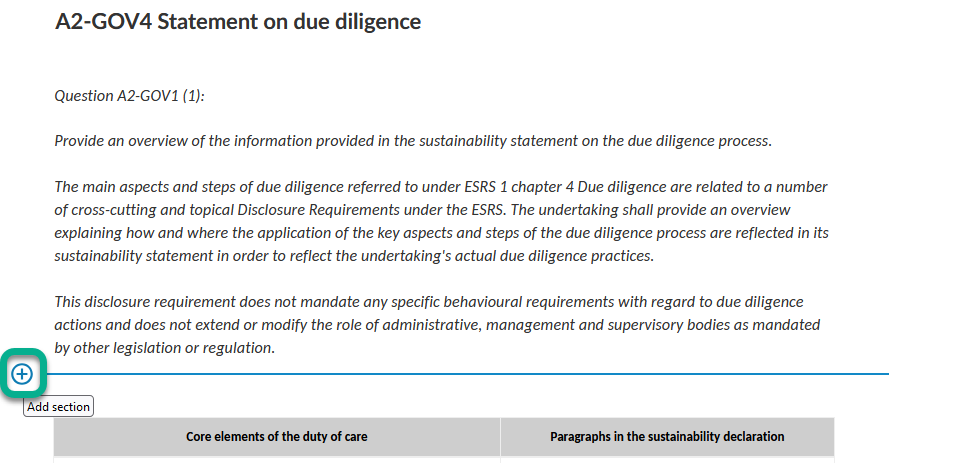
If you want to insert an excluded area, place the mouse cursor between two sections and click on the Add section symbol (blue plus symbol).
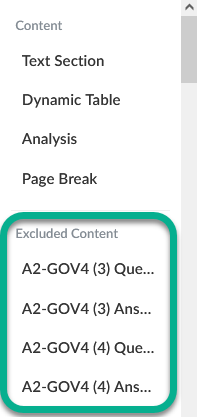
Insert the desired area from the Excluded Content list.
Note:
By clicking on the light bulb symbols next to the answers you can display the corresponding question. This text only serves as information and will not be printed.