
Insert data using MS Excel formula dialog with Cloud Connector
You can use the Microsoft Excel formula dialog to retrieve and insert data from the engagement file into the excel file.
To insert data using the formula dialog:
-
Select the formula icon (
 ) to launch the Insert Function dialog.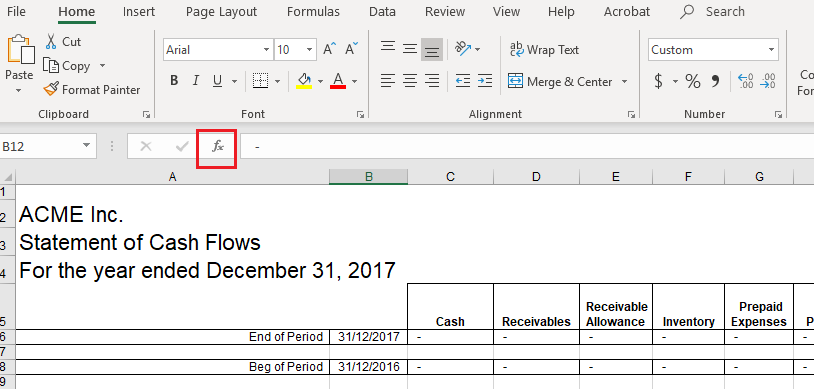
-
At the Or select a category field, select SE Connector Develop from the drop-down.
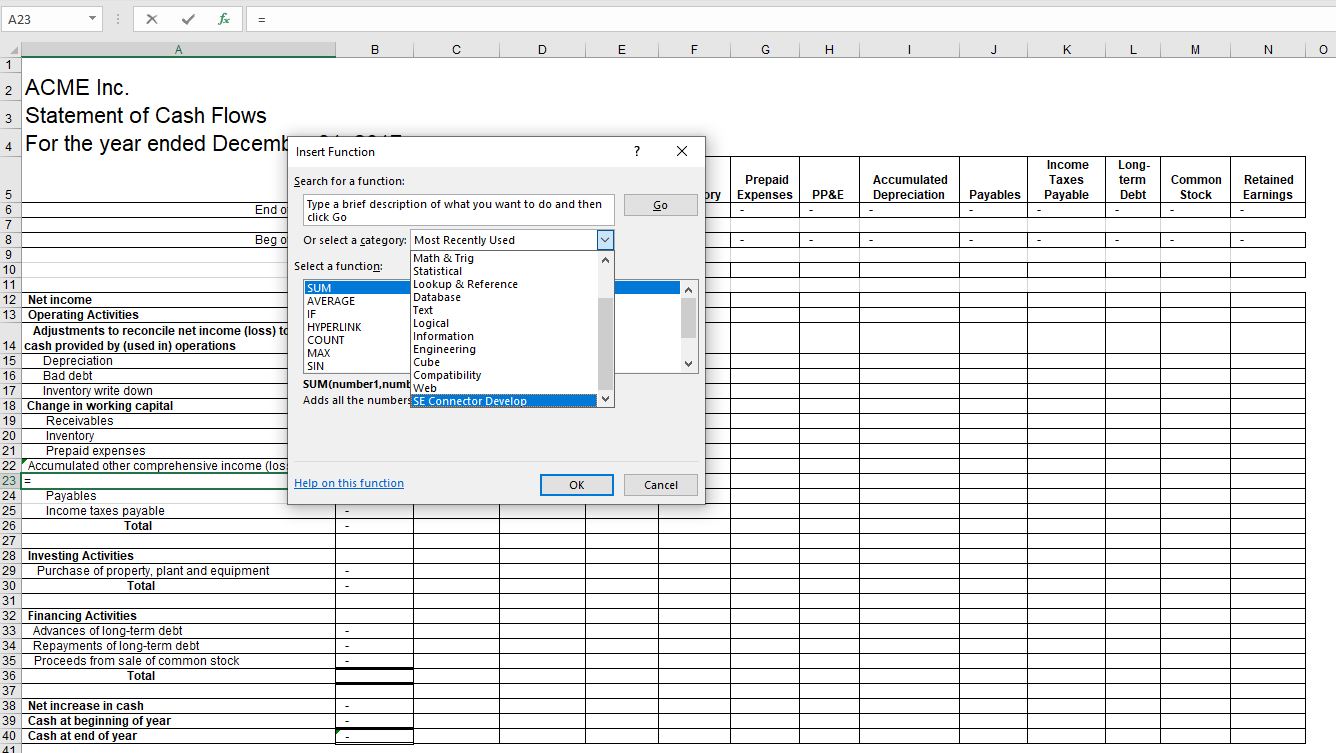
-
Select the desired function.
If you know the name of the function, you can use the search field to find it. To view all the available functions, see List of Cloud Connector functions.
In the below example, we selected the CWI.GROUPBALANCE function. Notice that a brief description of the selected function and its parameters display.
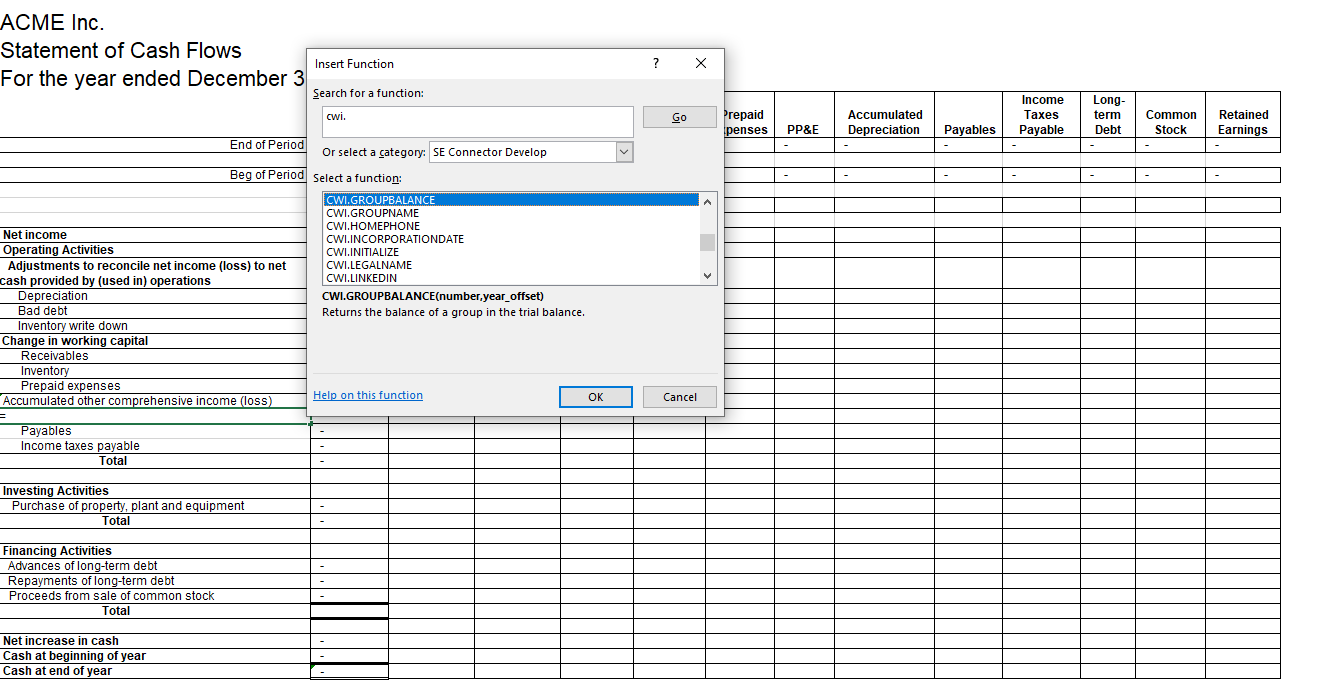
-
Select OK.
-
If there are parameters associated with the selected function, enter the parameters and select OK.
The below example shows the parameters associated with CWI.GROUPBALANCE.
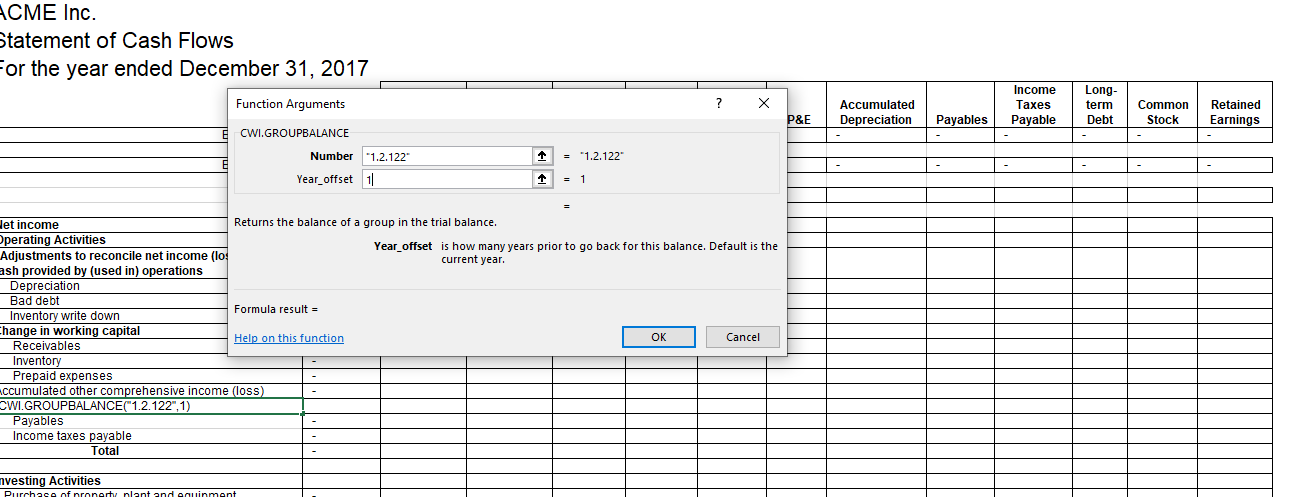
You can use operators with Cloud Connector formulas to perform calculations.
#BUSY! means that it's taking a few moments to load the data into the cell.
#VALUE! means that the data cannot be found. For example, if the firm address has not been entered, #VALUE! displays in the cell.