
Carry forward a Caseware Taxflow engagement
You can carry forward an engagement to re-use information, copying over answers from the prior year that have not changed.
The carry forward process uses answers from the prior year when making decisions again in the current year. For auditors and accountants, this is often a time-saving utility where they accept all of last year's changes or only work on the individual items that have changed.
For more information about migrating from Caseware Taxflow (Legacy), see Migrate from Caseware Taxflow (Legacy).
To carry forward an engagement:
-
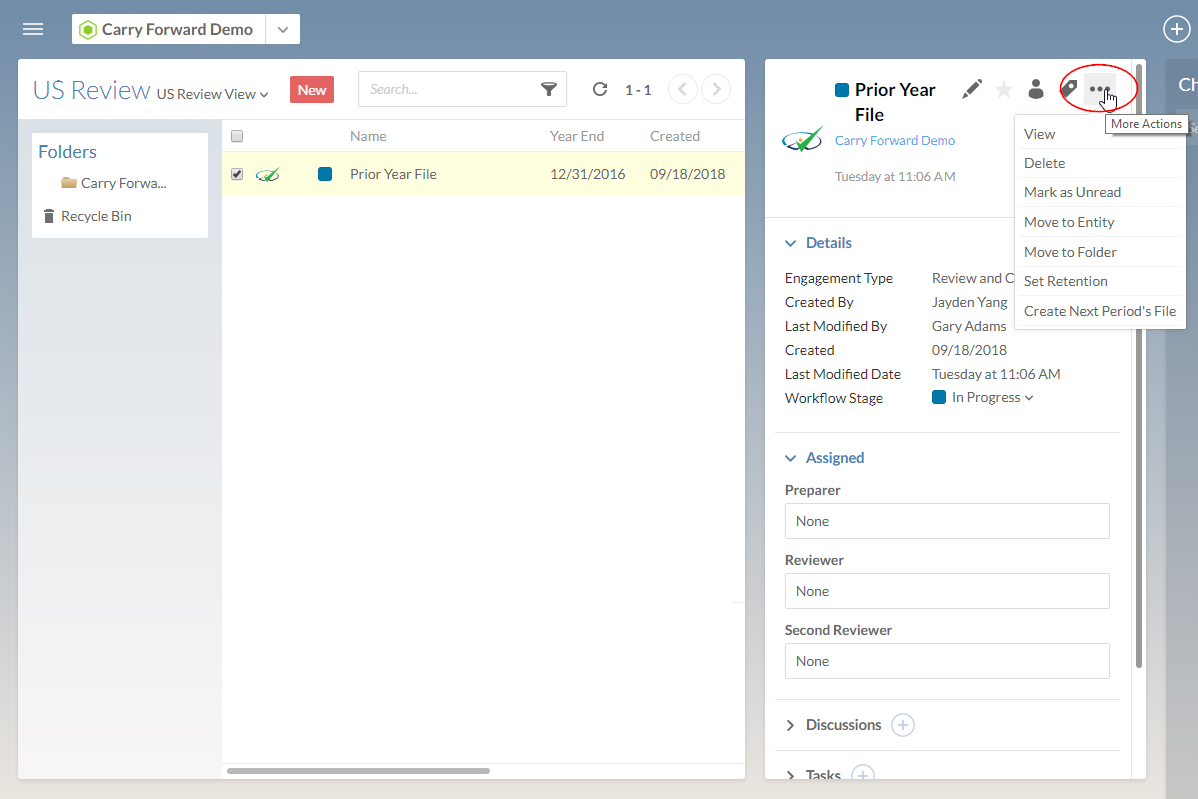
Select Create Next Period's File from the More actions (
 ) icon.
-
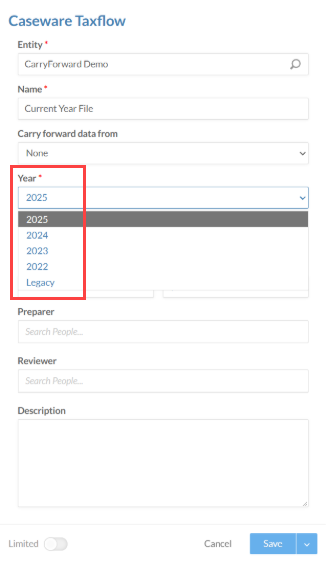
In Year, ensure you select the tax year for the new engagement.
-
Complete the Carry Forward dialog as required.
-
Select Save.
The new engagement is created.
Carry forward modified procedures, queries, letters and responses
You can carry forward a procedure, a query or a letter that was modified in a previous period, as well as responses and sign-offs.
To carry forward a procedure, a query or a letter that was modified in a previous period:
-
Open an engagement file that was previously carried forward.
-
From the Documents tab, open a query or procedure that was modified during the previous engagement.
The following example shows a carried over procedure in Optimizer:

-
Accept (
 ) or Ignore (
 ) changes as required.
-
Select Carry forward (
 ), and choose whether to accept the bulk carry forward action or dismiss it.
You can also carry forward responses to procedures and queries. You must accept or dismiss the procedure or query modifications before carrying forward responses.
To carry forward a response from a previous period:
Carry forward of responses is only available if a query or a procedure has carry forward options. You cannot carry over a response unless you carry over its related query or procedure first. If a sign-off is available for the response, it is automatically carried forward and shown on the page once you carry forward the response.
-
Open an engagement file that was previously carried forward.
-
From the Documents tab, open a query or procedure whose response was modified during the previous engagement.
-
Accept (
) or Ignore () changes as required. -
Select Carry forward (
), and choose whether to accept the bulk carry forward action or dismiss it.Note: If the responses have been signed off in the previous period, the sign-off information displays on the page once you carry over the responses.
Carry forward new documents
You can carry forward documents that were added to an engagement in a prior period.
To carry forward a document that was added in the previous year:
-
Open an engagement file that was previously carried forward.

-
Select the Add document icon (
) to carry forward the new document. -
Select the Ignore suggestion icon (
) to prevent carrying forward a specific document. -
Select Carry forward (
), and choose whether to accept the bulk carry forward action or dismiss it.