
Engagementdatei für die nächste Periode (Jahreswechsel) erstellen

Content in this topic requires Caseware Working Papers.
When the period for the engagement is coming to a close, you'll want to create an engagement file for the next period.
In Working Papers, the process of completing an engagement is known as a Year End Close. During this process, you can also create a new file for the next period; this is known as a Roll Forward. In a Roll Forward, the current file's closing balances are used to define the opening balances in the new file.
Performing a year end close
You can perform a year end close on a Working Papers file when all work for the engagement is complete. By doing this, you create a new Working Papers file and rolling forward chosen balances and data to set up next year's file.
Jahreswechsel durchführen:
-
Ensure that you have the Owner role or equivalent permissions for the Working Papers file.
-
From the Cloud menu, select Working Papers.
-
Select the Working Papers file for your engagement. In the details pane, select Open Sync Copy.

-
In the Working Papers file, on the Ribbon, click the Engagement tab. In the Manage section, click Year End Close.

-
In the Year End Close and Roll Forward dialog, enter a file name for next year's engagement file. Choose your options for the roll forward, and select any information to be included in next year's file. When you have made your selections, click OK.

Working Papers will perform the year end close, and once the process is finished, it will automatically open the new file for next year.
When you perform a year end close on a published file, you also create a placeholder for the file under the client entity. Cloud displays the placeholder, but the file cannot be opened until you publish your local copy.

Publishing the new year's file to Cloud
Wenn Sie bereit sind, die neue Datei zu bearbeiten, können Sie sie in der Cloud veröffentlichen.
Eine Caseware Working Papers Datei publizieren:
-
Öffnen Sie Ihre Engagementdatei in Caseware Working Papers (AuditAgent).
-
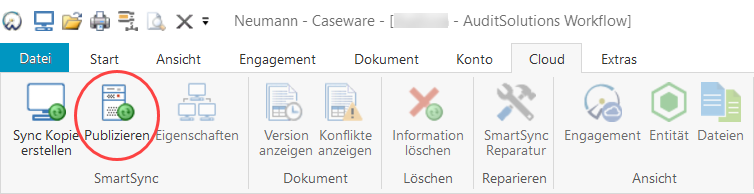
Wählen Sie im Menüband auf der Registerkarte Cloud die Option Publizieren.
-
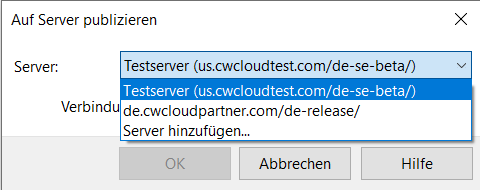
Wählen Sie im Dialog Auf Server publizieren die Kundenentität, zu der die Datei gehört.
-
Klicken Sie auf OK.
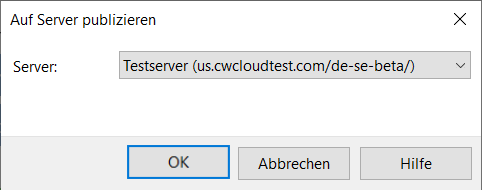
Sie haben Ihre Caseware Working Papers Datei erfolgreich in der Cloud veröffentlicht. Dadurch wird eine übergeordnete Kopie der Datei in der Cloud erstellt, die Sie nun für andere Mitarbeiter freigeben können. Die übergeordnete Kopie ersetzt den Platzhalter, der bei der ersten Durchführung des Jahresabschlusses für die Vorjahresdatei erstellt wurde.
