Berechnung zu Tabellenzellen im Jahresabschluss hinzufügen oder bearbeiten
Sie können Berechnungen in Tabellenzellen hinzufügen oder bearbeiten. Die Berechnung kann Zahlen, Daten aus der HÜ, Daten aus den Jahresabschlüssen, Formularwerte (sofern in Ihrem Produkt Formulare verfügbar sind) oder eine Kombination aus all diesen Elementen umfassen.
To add or edit a calculation in table cells:
-
Open the Balance Sheet, select the table.
-
Wählen Sie Weitere Aktionen (
 ) und anschließend Dynamische Tabelle bearbeiten.
Die Tabellenoptionen im Bearbeitungsmodus.
-
Go to the desired cell and select the fx icon.
The Calculation tab opens.
Hinweis: The cell must be an Input row or Input column cell.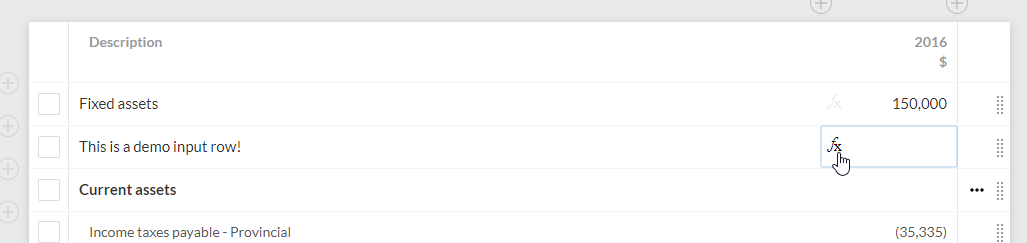
-
In the Calculation tab:
-
Select Link (
 ) to insert a trial balance data link in the formula.
The Data Link dialog opens with Financial statements selected by default as the source for trial balance data.
Hinweis: If you've imported prior years data, the dialog displays data for up to four prior years.You can change the default using the Source drop-down:
- Trial balance - trial balance data is sourced from the Final column in the Data page. That is, the final amounts after adjustments.
- Financial statements - trial balance data is sourced from the financial statements. That is, the rounded amounts and amounts that have been manually overridden.
As you insert data links, the (
 ) or (
 ) prefix indicates the data source.Hinweis: If forms are available in your product, the Forms value tab is available in the Data Link dialog. You can insert values from forms using this tab.
-
Select Numbers (
 ) to insert numbers in the formula.Tipp: You can use your keyboard to insert numbers.
-
Add the desired operators to build the formula.
Tipp: You can use your keyboard to insert operators.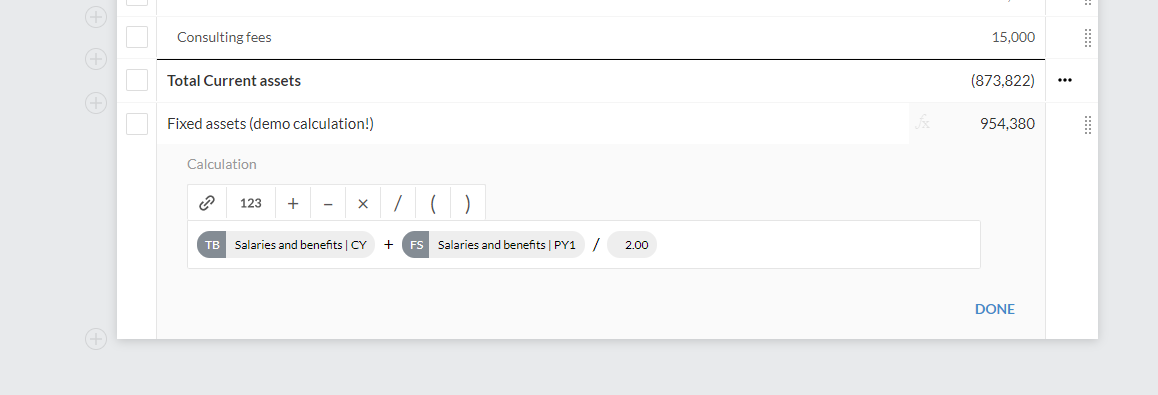
-
-
Select DONE to close the Calculation tab.
If you've entered an invalid formula, the fx icon displays in red (
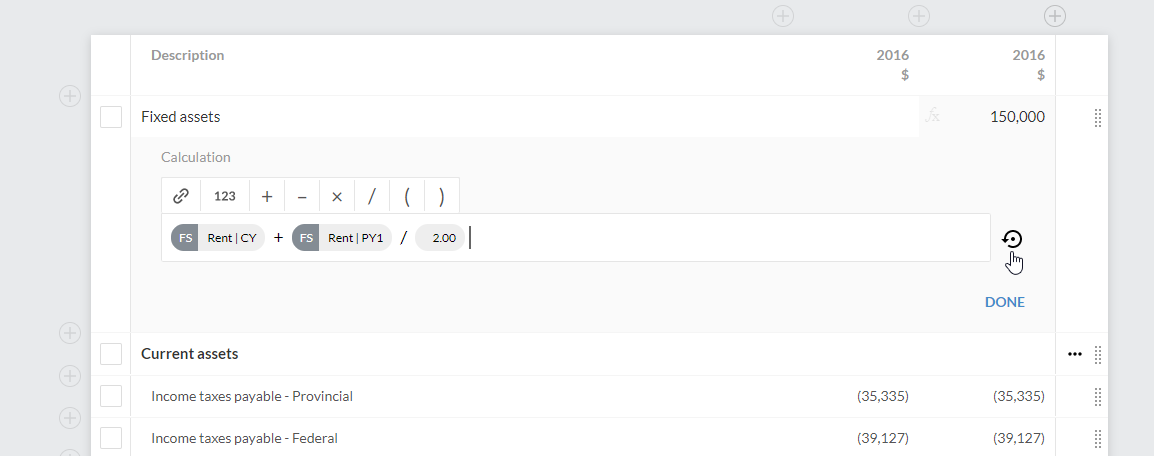
 ) to indicate an error.Hinweis: If you edit a calculation that's part of the default content that came with your product, a Revert icon (
 ) is available at the cell so you can revert to the original calculation, if needed.
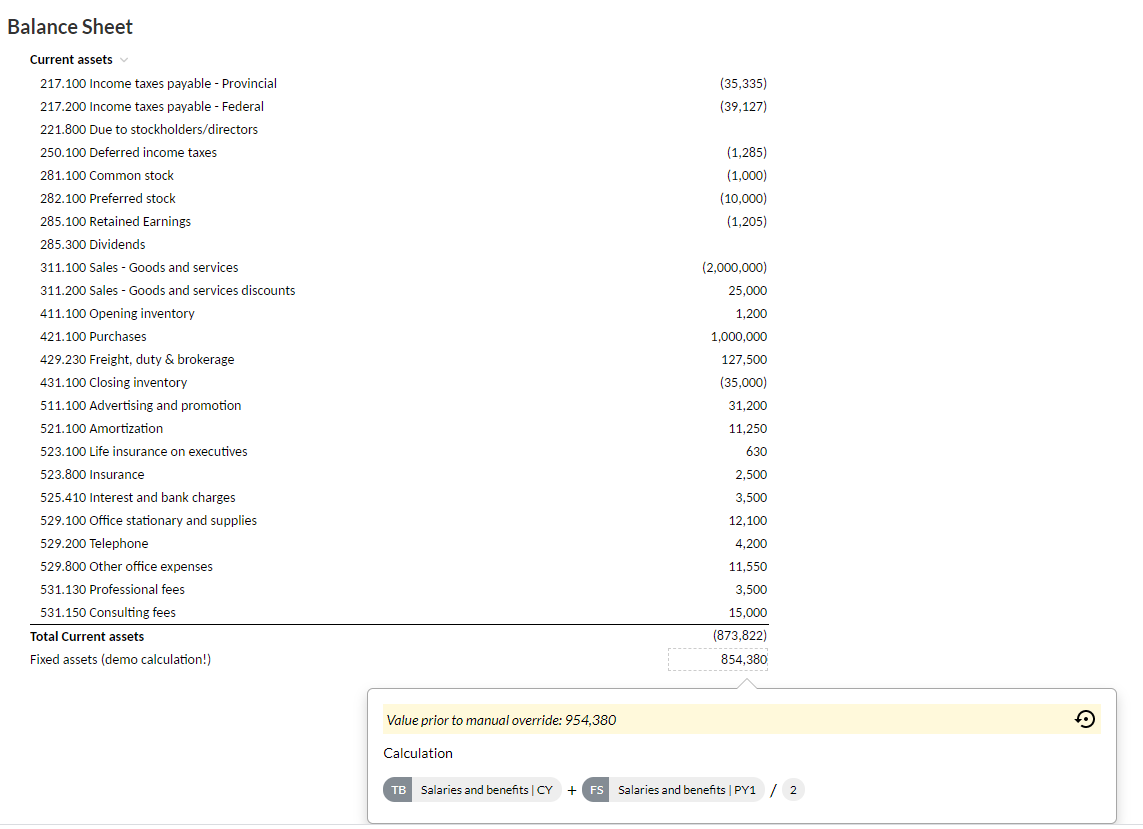
Back in the document, you can review the calculation formulas you've added. Select a cell to view details of the calculation.
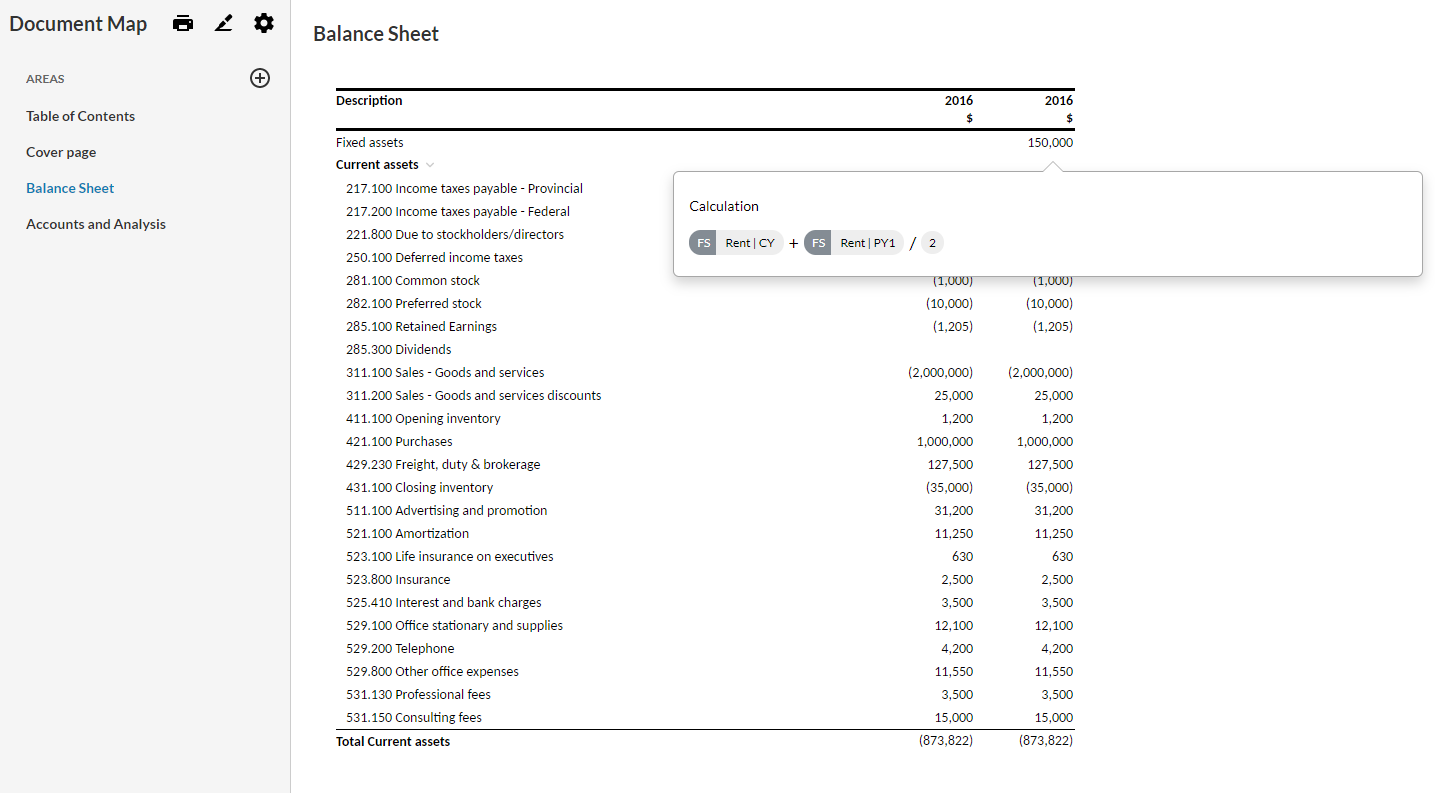
If you override a calculated cell value, you can select the cell to view the original calculation and value. The Account Details popup also presents a Revert () option.