
Tax-only engagement support
A tax-only engagement has no associated assurance engagement.
To get started with a tax-only engagement, import the client’s trial balance. For more information, see Import the client's data.
After you import the trial balance, assign accounts to tax groups.
To assign accounts to tax groups:
-
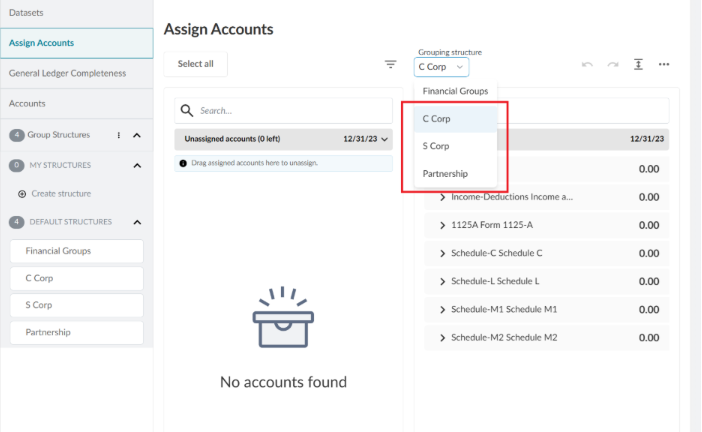
Open the Assign Accounts page.
-
From the Grouping structure drop-down menu, select the entity type that matches the engagement.
Note: All three entity types currently appear in the Grouping structure drop-down menu. In a future release, only the entity type that matches the engagement will appear. -
Assign accounts to tax groups. For more information, see Assign accounts to groups.
Assign tax groups using Excel
You can also assign tax groups using the TB1 Trial balance import template (supports tax-only workflow) document on the Documents page.
To assign tax groups using Excel:
-
From the Documents page, open the Excel template and complete columns A to D using the client’s trial balance information.
-
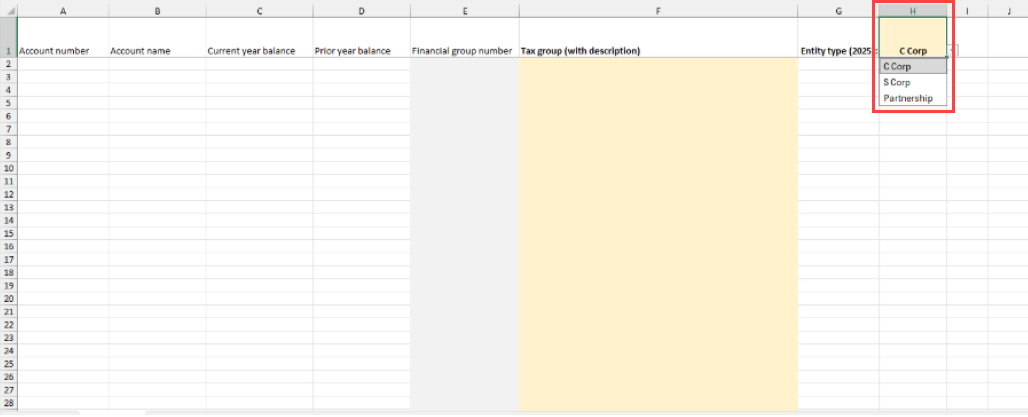
In cell H1, select the entity type.
-
In column F, select the appropriate tax group for each account.
Note: You can use Caseware Verity to automatically populate the tax group mappings in column F. -
After you assign a tax group to each account, save the file.
-
Import the saved file. During the import, map columns A to E as shown in the following table. Ignore the remaining columns.
Excel column Column type A Account number B Account name C Current year balance D Prior year balance E Financial group number