Datenverknüpfung und Echtzeit-Updates in Cloud Connector
If a data value changes in the engagement, the change is automatically reflected in the Excel file.
Beispiel:
-
You insert the name for the trial balance group Cash in the Excel file using the Caseware Cloud Connector Add-in.
-
Während Sie an Ihrem Engagement arbeiten, ändern Sie den Gruppennamen in Cash and cash equivalents.
-
You'll notice that Cash has automatically changed to Cash and cash equivalents automatically displays in the Excel file.
However, if you modify a group number in your engagement, the change is not automatically reflected in data you've inserted the Excel file. You must re-insert the data in the Excel file.
Beispiel:
-
You insert the name of the trial balance group Cash in the Excel file using the Caseware Cloud Connector Add-in.
-
Während Sie an Ihrem Engagement arbeiten, ändern Sie die Gruppennummer für Cash.
-
Sie werden feststellen, dass die Zelle nun einen falschen Namen oder keinen Wert anzeigt.
To fix, delete the existing value and re-insert the name of the trial balance group Cash in the Excel file.
Hyperlink tab for syncing document URLs to Excel
You can now automate the process of adding document URLs from an engagement to an Excel spreadsheet with Caseware Cloud Connector. The connector will enable you to see the current list of Cloud Engagement documents (including Microsoft Office documents) that are available from a URL and add the URL as a link to the spreadsheet. The link, rather than being a long URL string, will retain the same name as in the engagement.
Sync document URLs with Cloud Connector
-
Ensure you have Caseware Cloud Connector installed on your version of MS Excel. To learn more about setting up Cloud Connector, refer to How to get started with Cloud Connector.
-
Ensure your Excel file is attached to your engagement and open the file from your Caseware app.
-
Access Caseware Cloud Connector from the Data Link button (
 ) on the Home ribbon of your Excel file. The Cloud Connector dialog box will open.
-
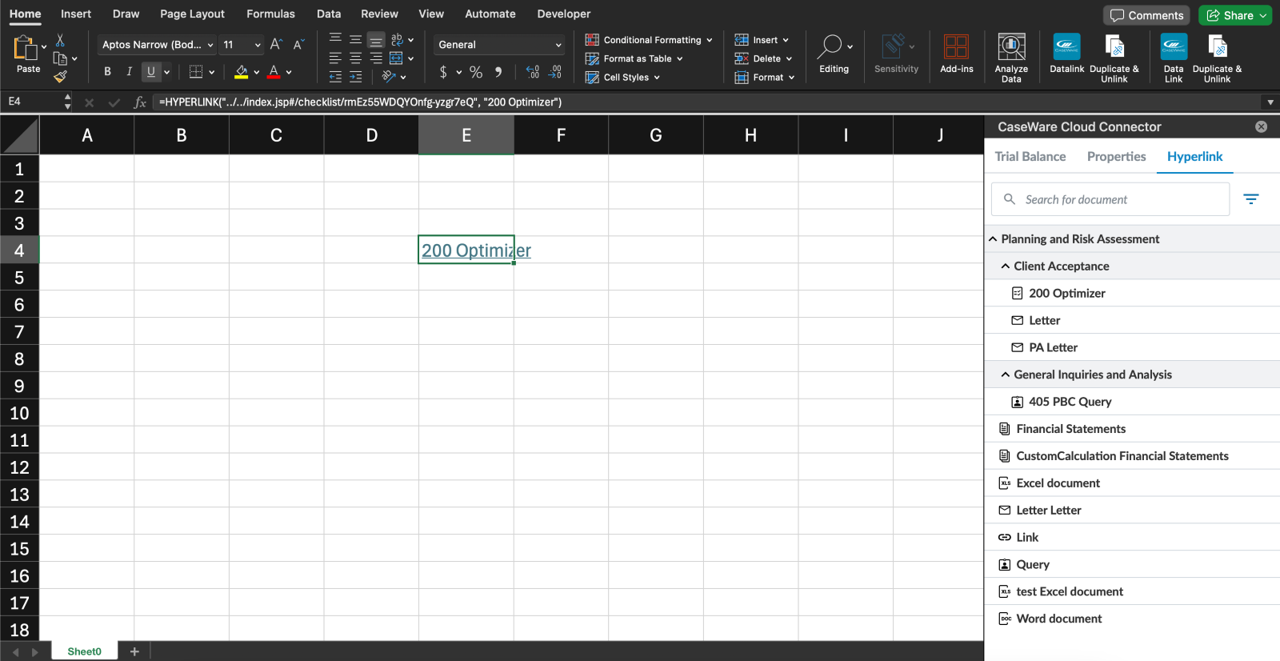
Select the Hyperlink tab from the dialog box. You will see a full list of your engagement file documents and in the same structure as in your Caseware app.
-
Click a document within the Caseware Cloud Connector and click the Excel cell where you want to copy it. It will copy over the URL to the Document page with the same filename. Clicking on this cell will open the URL in your Caseware app.
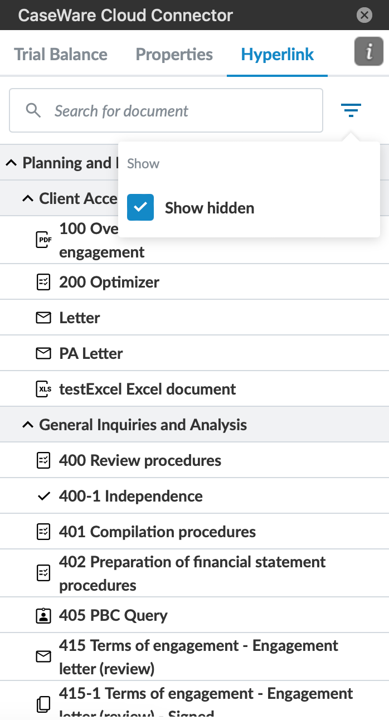
Caseware Cloud Connector ignores documents inside the engagement files that are hidden. To show documents hidden in the documents page, users can check the filter Show hidden. These hidden documents can be inserted as links into the Excel spreadsheet. You will need to refresh or reopen Excel to update the links.
Filter dimension balances in Cloud Connector
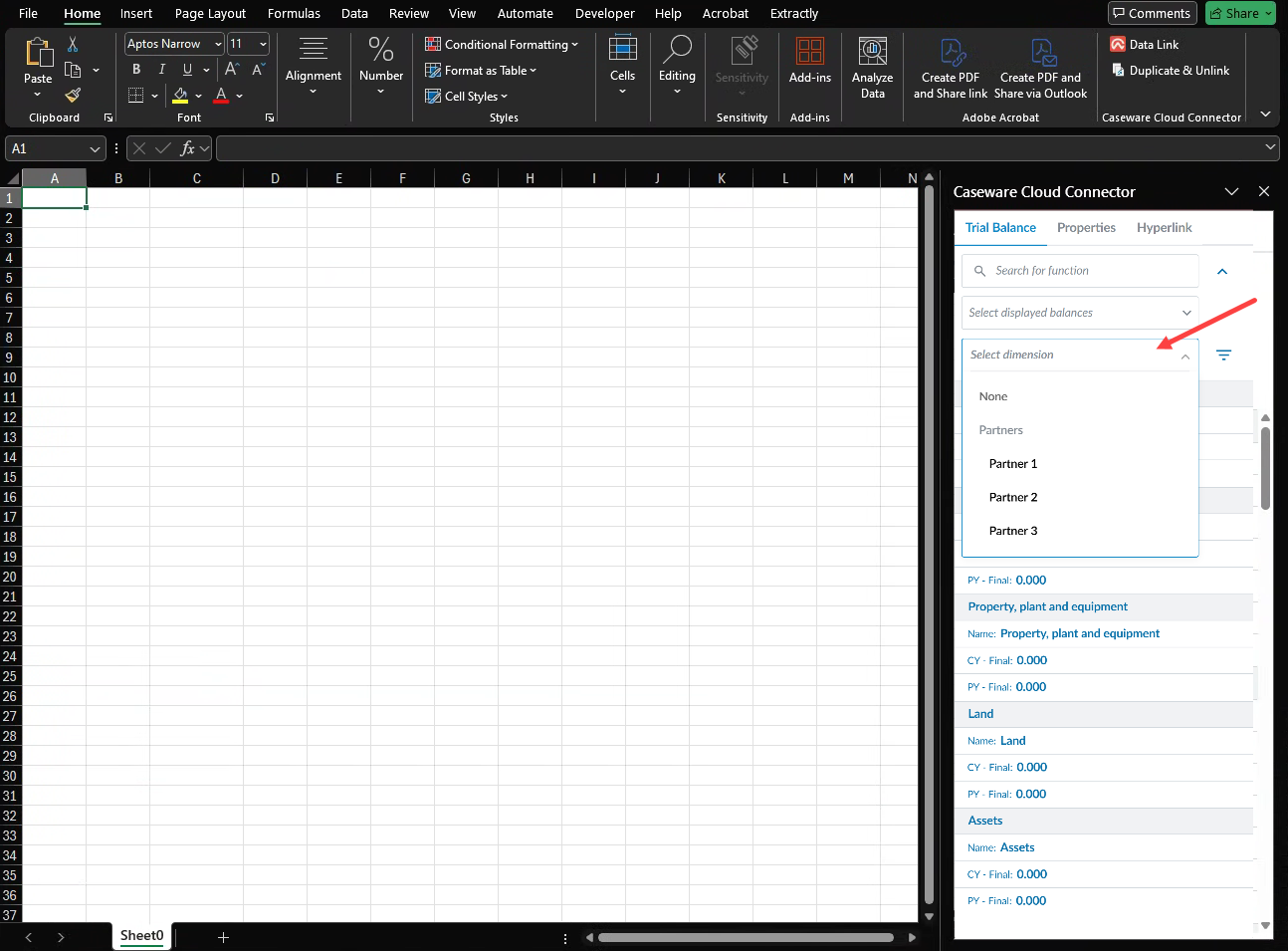
You can select dimension balances in Cloud Connector that match the final balances available in Datalink. This selector is available in the Cloud Connector dialog box when the final balance is selected and other balance types are still available.
Hinweis: Dimensions may not be available in your product. To learn more about dimensions, refer to: Add dimensions.
To filter dimension balances in Cloud Connector:
-
Access Caseware Cloud Connector from the Datalink button (
) on the Home ribbon of your Excel file. The Cloud Connector dialog box will open. -
Click the filter field Select dimensions and select the dimension that you want to filter from the dropdown menu.