
Enable access to Caseware Verity/AiDA
Caseware's AI assistant is available to all Caseware Cloud firms. Depending on your region, it may appear as Verity (North America and Latin America) or AiDA (all other regions). The steps to enable access are the same regardless of which version your firm uses.
Access is not enabled automatically for individual users. As a firm administrator, you grant access on a per-user or per-group basis. Users have no access by default until you enable it.
In most cases, enabling access for a group is the most efficient approach. When you enable access for a group, every member of that group receives it. For example, you can enable access for the All Staff group to give every member access at once.
You can also enable access on an individual basis. For example, if your firm works with external consultants, you may want to grant access to specific users rather than an entire group.
To enable access to AiDA or Verity for a user or group:
-
Stellen Sie sicher, dass Sie über die Rolle Mitarbeiteradministrator bzw. entsprechende Berechtigungen verfügen.
-
Wählen Sie aus dem Cloud Hauptmenü (
 ) Gruppen oder Mitarbeiter.

-
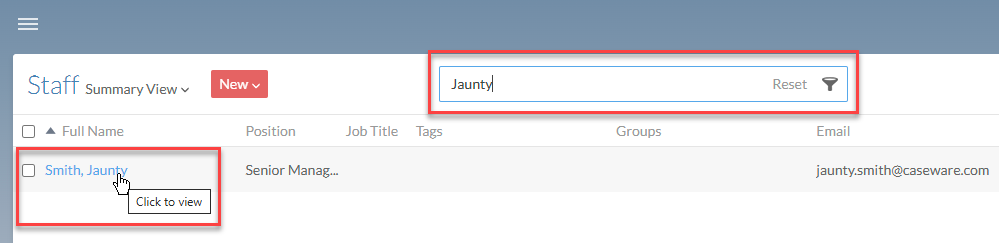
If you do not see the user or group, specify part or all of the user or group name in Search.
-
Select the user or group for whom you want to enable access.
-
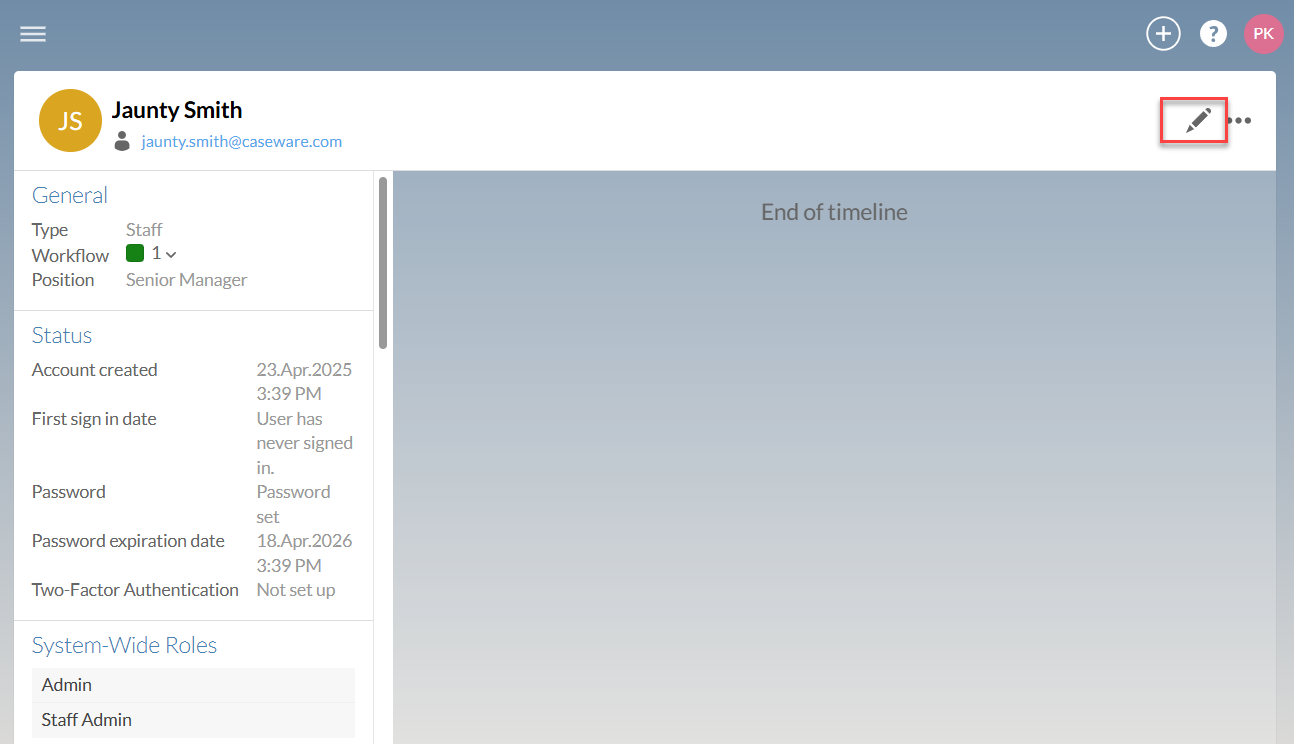
Wählen Sie oben links Bearbeiten (
 ).
-
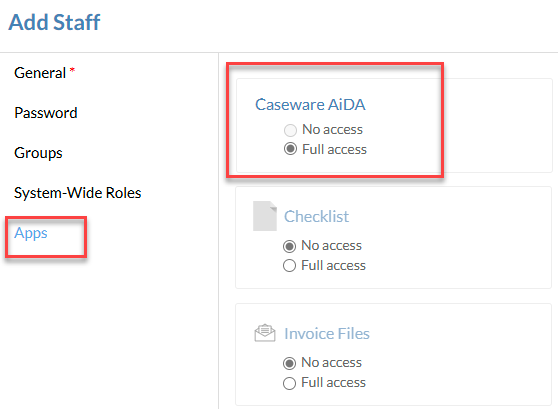
Select Apps, and locate the tile for Caseware AiDA, then choose the appropriate access type..
-
Kein Zugriff: Den Zugriff auf die App für den Benutzer oder die Gruppe nicht aktivieren. Dies ist die Standardoption, für die keine Lizenzen erforderlich sind.
-
Vollständiger Zugriff: Die App für den Benutzer oder die Gruppe aktivieren. Diese Option verwendet eine Lizenz für jeden Benutzer, der Zugriff auf die App erhält.
-
-
Klicken Sie auf Speichern.