
Daten aus Online-Buchhaltungssoftware importieren
You can import data from online accounting software.
To import data from online accounting software:
-
Navigate to the Data page. The Data page opens to the Datasets tab.
-
If you’ve previously imported data, select Add data.
-
If your engagement is consolidated and has internal subsidiary entities, select which entity you want to import data for from the list.
-
-
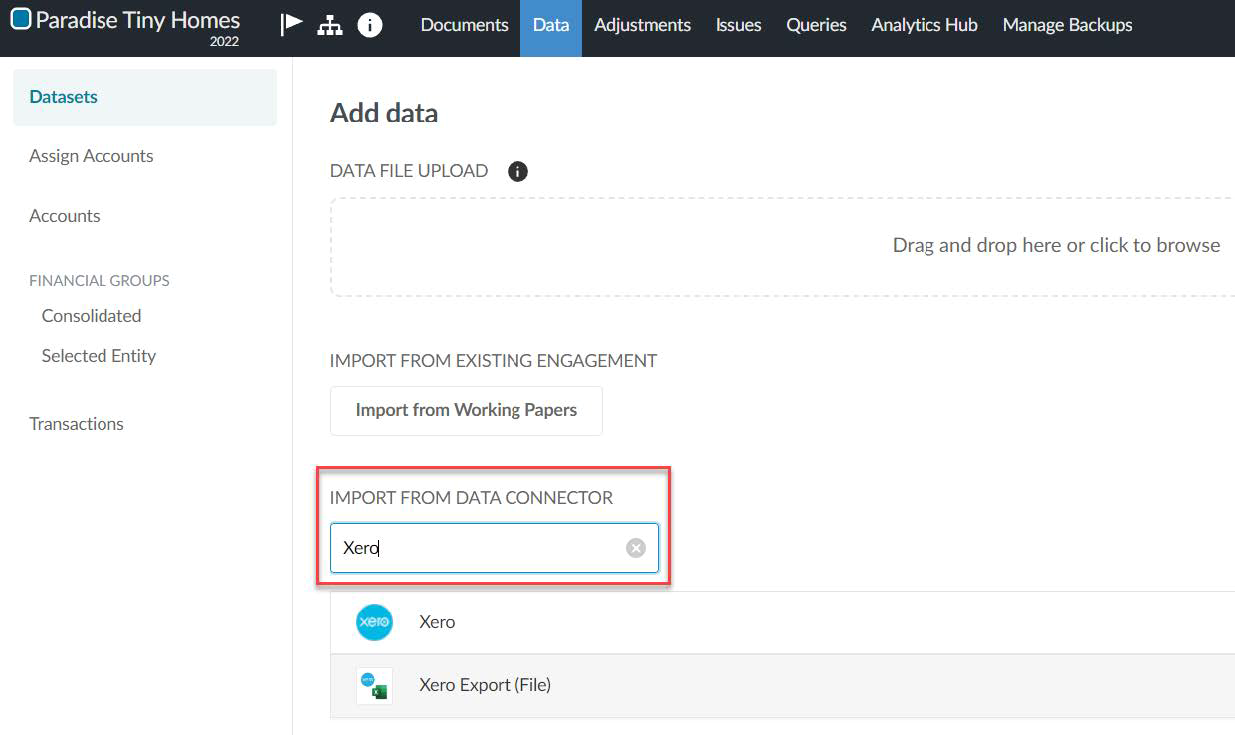
Under IMPORT FROM DATA CONNECTOR, select the accounting software from the list. This example uses Xero.
If your data source is not visible, enter its name into the Search box to find it.
 Hinweis: If you’re importing data from Sage Intacct, you’ll first need to ensure your client has added Caseware’s sender ID to the Web Services authorization section of their Sage configuration. Caseware’ sender ID is
CaseWare-MPP. To learn more, see Add Web Services authorizations. -
On the login page of the software you’re importing from, enter your credentials and grant the necessary permissions to allow access. The account you use to log in via OAuth for the data connector must also have the required permissions to import data.
-
If there are multiple organization options, the Select Organization stage displays. Select the appropriate organization to import data from, then Next.
-
At the Configure Data stage of the import wizard:
-
Year start date is automatically filled with the start date of the data.
-
Year end date is automatically filled with the end date of the data.
Hinweis: Year end date must match the year-end date of the data to be imported. The year-end date of the engagement where you are importing this data must also match the end date of the data to be imported.
-
-
In Select dataset type, choose the type of dataset you are importing.
To learn more about the dataset options, see Dataset types. Note that some dataset types may not be available in your product.
-
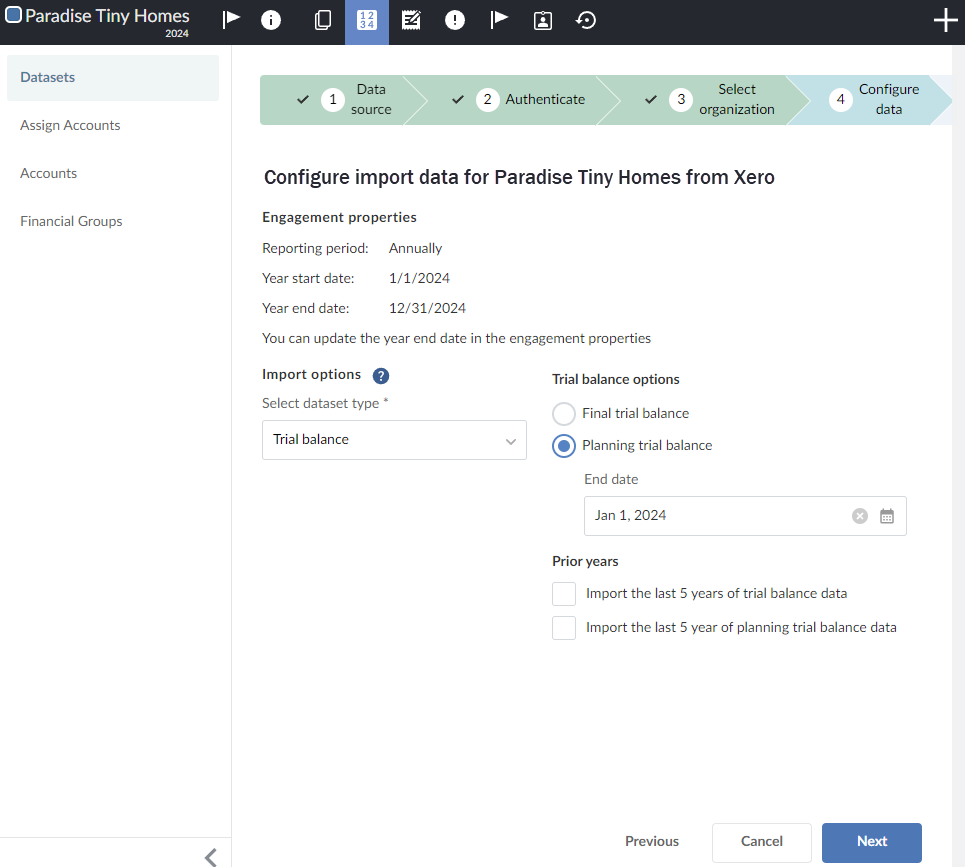
If you selected Trial balance, collapse the list of dataset types by selecting the Collapse icon (
 ). Notice the Trial balance options appear:
-
Select Planning trial balance if you are importing a planning balance or Final trial balance if you are importing a final balance.
-
Ensure the End date is correct.
Hinweis: If you are importing final balances, or if planning balances have not been enabled in your product, the End date must match the year-end date of the data to be imported. -
In Prior years, you have the option of importing data related to the last five years:
-
Select Import the last 5 years of final trial balance data to import final balances.
-
Select Import the last 5 years of planning trial balance data to import planning balances.
-
-
-
Wählen Sie Weiter.
-
At the Confirmation stage of the import wizard, review the information and select Import.
Hinweis: If you navigate away from the Datasets tab while the data is importing, the import will continue. When you return to the Datasets tab, you'll be able to see the status of the import. -
To view the imported data, click View data next to the dataset you imported.
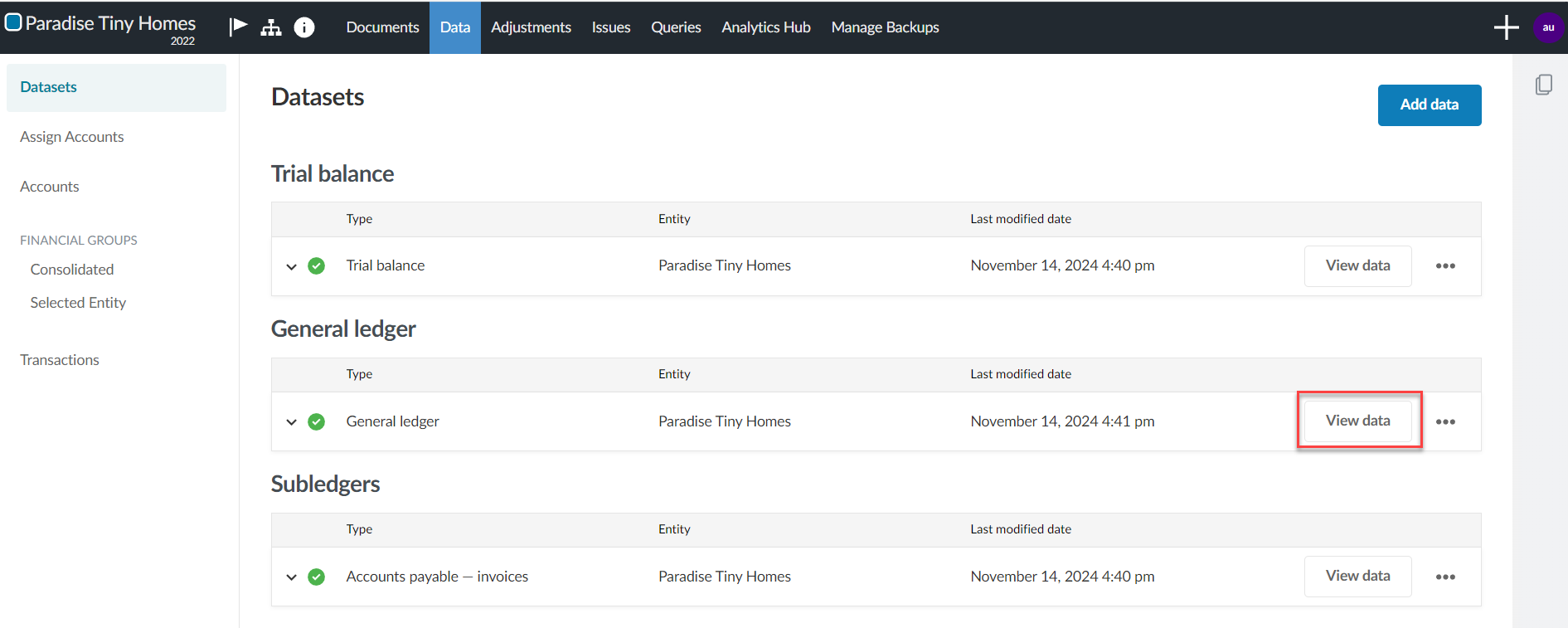
A new page appears displaying the data. By default, all the columns in your dataset display.
-
Click Columns to deselect those you want to hide.
Click Filters to filter the data displayed in the dataset.
For more information, refer to View the client's general and subledger data.
-
Reimport the trial balance
After you complete the import, you can reimport the trial balance data at any point in time or import a new trial balance:
When you reimport data,
-
Account names and balances will be overwritten with the reimported data for accounts that already exist in the engagement
-
Any new accounts in the reimported data that do not already exist in the engagement will be added to the engagement.
-
Accounts that exist in the engagement that are not included in the reimported data will be deleted, unless:
-
The existing account has a balance for a period, balance type or other entity that is not included in the reimported data. For example, if the existing account has a prior year balance but the reimported data only includes data for current year balances, the existing account will not be deleted.
-
The existing account has a corresponding adjustment, issue or annotation.
-
-
Any adjustments, issues and annotations made prior to reimport will remain after the data is reimported.
To reimport the trial balance:
-
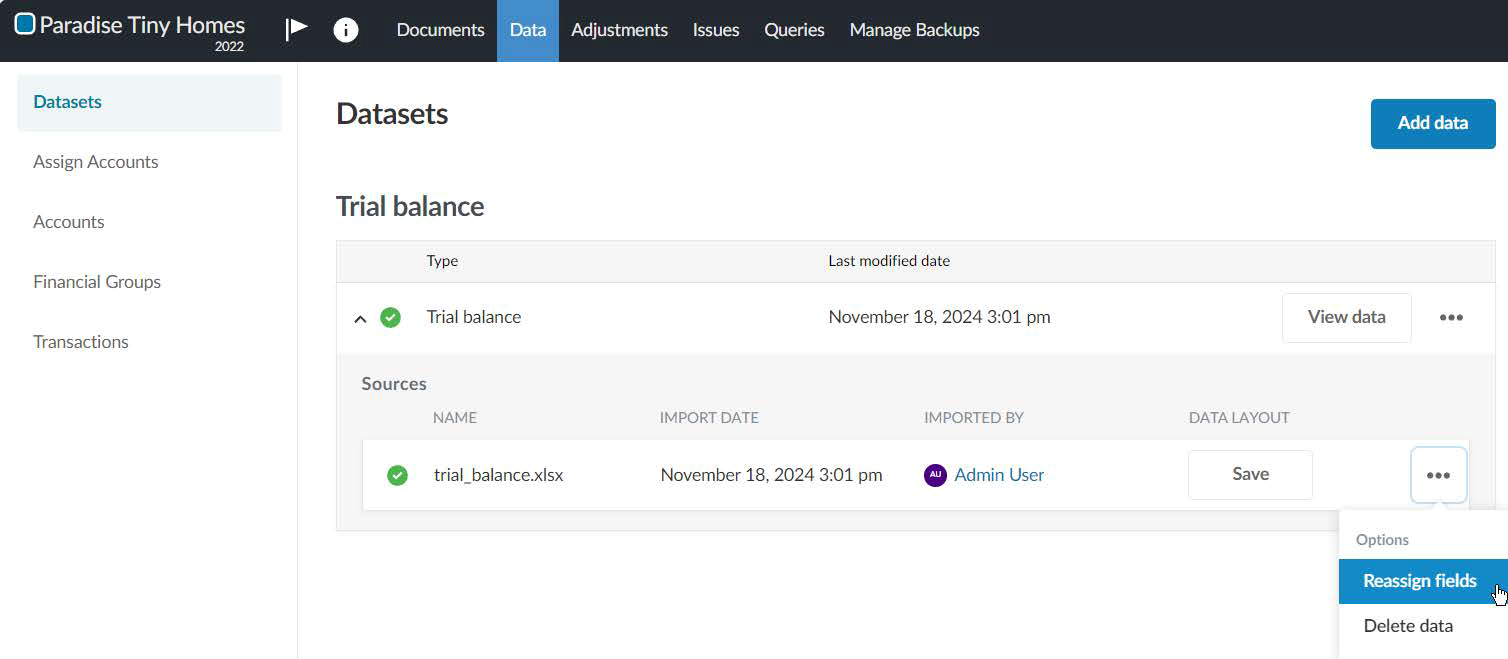
Reassign the fields in the trial balance. Select Options (
 ) | Reassign fields on the Datasets tab on the Data page.
-
In the dropdowns, make any necessary changes in how fields in the data file are assigned to Caseware fields. Select Reimport.
Import a new trial balance
In an engagement where you have already imported a trial balance, you can import a new trial balance. Delete the existing trial balance and then proceed to import the new trial balance.
To import a new trial balance:
-
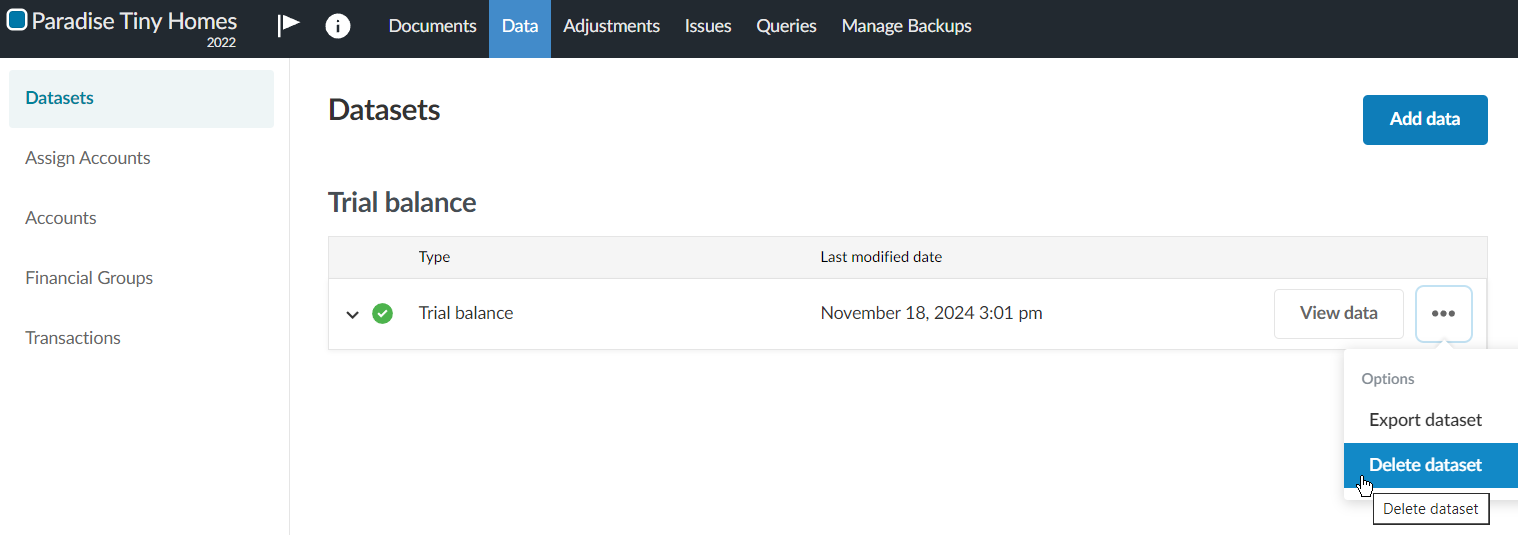
Delete the existing trial balance. Select Options (
) | Delete data on the Datasets page.
-
Proceed to import the new trial balance. Under DATA FILE UPLOAD, browse or drag the CSV or Excel file to the file upload area.
Dataset types
| Dataset-Typ | Beschreibung |
|---|---|
| Hauptbuch | Hauptbuch |
| Hauptabschlussübersicht | Ein Arbeitsblatt, in dem sämtliche Konten in Soll- und Haben-Spalten zusammengeführt werden, um die rechnerische Richtigkeit der Buchführung eines Unternehmens sicherzustellen. |
| Verbindlichkeiten aus LuL- Rechnungen |
Das Dataset Verbindlichkeiten aus LuL - Rechnungen enthält alle im Prüfungszeitraum erhaltenen Rechnungen. |
| Verbindlichkeiten aus LuL- geleistete Zahlungen |
Das Dataset Verbindlichkeiten aus LuL - geleistete Zahlungen enthält alle im Berichtszeitraum getätigten Zahlungstransaktionen (Scheck, Überweisung, Bar usw.). |
| Verbindlichkeiten aus LuL- Lieferanten |
Das Dataset Verbindlichkeiten aus LuL- Lieferanten enthält alle Details zum Lieferanten, wie Kontaktdaten, Adresse, Kreditlimit usw. |
| Verbindlichkeiten aus LuL - offene Salden |
Das Dataset Verbindlichkeiten aus LuL - offene Salden enthält Angaben zu allen offenen, unbezahlten oder nicht ausgeglichenen Verbindlichkeiten-Transaktionen zum Geschäftsschluss eines bestimmten Datums. |
| Forderungen aus LuL- Rechnungen |
Das Dataset Forderungen aus LuL - Rechnungen enthält alle im Prüfungszeitraum erstellten Rechnungen. |
| Forderungen aus LuL- erhaltene Zahlungen |
Das Dataset Forderungen aus LuL- erhaltene Zahlungen enthält alle im Berichtszeitraum getätigten Zahlungstransaktionen (Scheck, Überweisung, Bar usw.). |
| Forderungen aus LuL- Kunden | Das Dataset Forderungen aus LuL- Kunden enthält alle Details zum Kunden, wie Kontaktdaten, Adresse, Kreditlimit usw. |
| Forderungen aus LuL- offene Posten | The Accounts receivable—open balances dataset contains details regarding all open, unpaid, or unresolved customer transactions as of the close of business on a specified date. |
| Bestandstransaktionen | Captures all transactions affecting inventory accounts during the time period specified (for example, receipts, shipments, transfers, returns, and adjustments). |
| Aktueller Bestand | Erfasst die vorhandenen Bestandsmengen von Artikeln nach Lagerort sowie deren Beträge zum angegebenen Datum. |
| Andere | Unstrukturierte Transaktionsdaten, die keinem vordefinierten Schema folgen. Wählen Sie diese Option, um Daten zu importieren, die keinem der hier beschriebenen Dataset-Typen entsprechen. Jede mit diesem Dataset-Typ importierte Datei wird als eigenständiges Dataset betrachtet. For details on where this data can and cannot be used, see Use the Other (schemaless) dataset type. |