
Anpassen von Schriftgröße und Abständen in den Jahresabschlüssen
Sie können die Schriftgrößen sowie die Ränder, Einrückungen und Textabstände in den Jahresabschlüssen individuell anpassen. Beachten Sie, dass die Auswahlen, die Sie für diese Einstellungen im Dialog Formatierungsoptionen treffen, Vorrang vor allen Schriftartenoptionen haben, die Sie in den Produkteinstellungen auswählen.
To customize font sizes and spacing in the financial statements:
-
In the financial statements, select Document settings (
 ) | Formatting options.
-
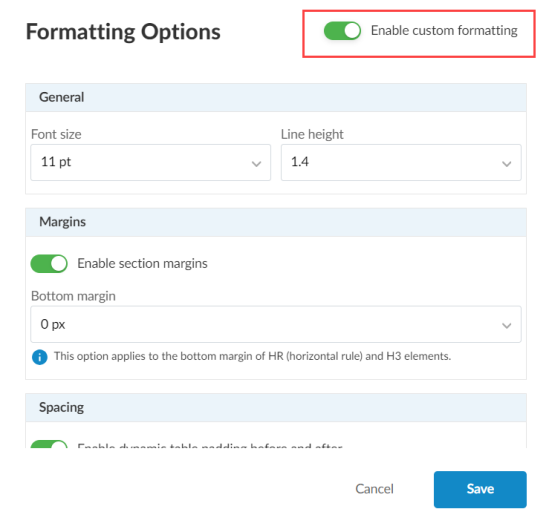
In the Formatting Options dialog, select Enable custom formatting.
-
Under General, select the Font size and Line height for paragraph level text.
-
Under Margins, select Section margins to enable margins for sections and enter a custom margin size for the Bottom margin of HR and H3 elements in the financial statements if required.
-
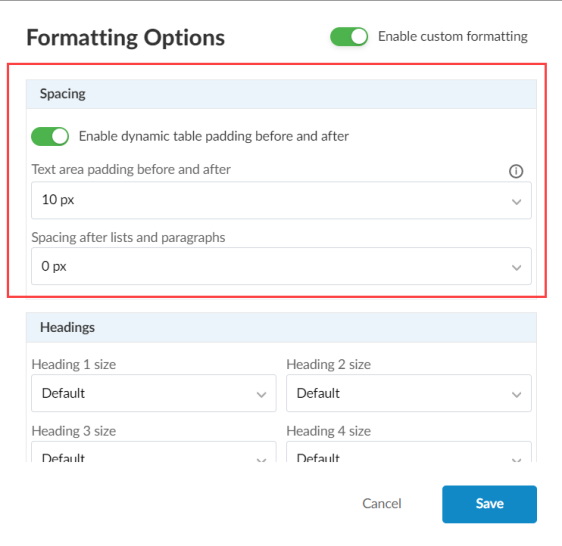
Under Spacing:
-
Select Enable dynamic table padding before and after to apply 10px padding to dynamic tables.
-
Select the padding to be used before and after text areas in the Text area padding before and after dropdown.
-
Select the spacing to be used after lists and paragraphs in the Spacing after lists and paragraphs dropdown.
-
-
Under Headings, select a font size for each heading level.
If you select Default, the heading font size is scaled according to your selection for Font size in the General section.
-
Under Note and Area Heading Level, select a font size for area titles and each note heading level..

-
Under Indentation, select how much to indent note subheadings and lists in the Note subheading indentation and List Indentation dropdowns.
-
Wählen Sie Speichern.