
Benutzerdefinierte Zugriffsrollen erstellen
Im laufenden Geschäftsbetrieb Ihrer Organisation ist es notwendig, dass Sie den Zugriff auf Ihre Mandantendateien kontrollieren. Verschiedene Engagementteams benötigen Zugriff auf ihre spezifischen Mandantendateien, aber der Zugriff auf andere Mandantenmaterialien ist ihnen verwehrt. Einige Mitarbeiter benötigen Zugriff auf alle Mandantendateien für ein Engagement, während andere nur Zugriff auf die ihnen zugewiesenen Dokumente brauchen.
Sie können den Zugriff auf die Engagements Ihres Unternehmens und die verbundenen Engagementmaterialien in Cloud mit Hilfe von Zugriffsrollen verwalten.
Die vorgegebenen Zugriffsrollen umfassen die häufigsten Typen von Zugriffschutz, die Sie den Benutzern gewähren möchten. Sie können aber auch benutzerdefinierte Rollen für Ihr Unternehmen erstellen.
Benutzerdefinierte Zugriffsrollen erstellen:
-
Stellen Sie sicher, dass Sie über die Rolle Einstellungen-Administrator bzw. entsprechende Berechtigungen verfügen.
-
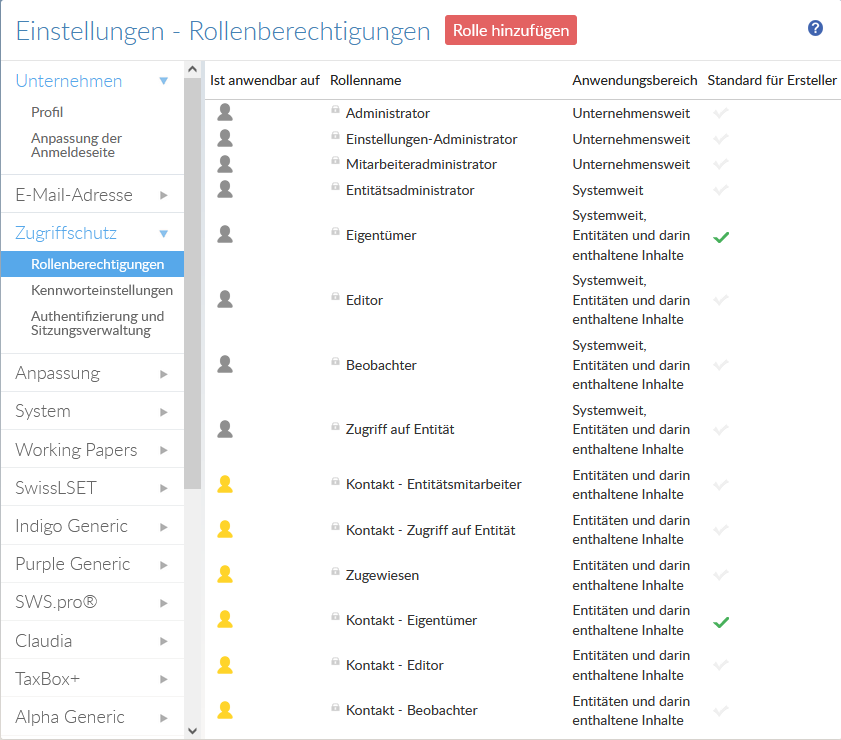
Wählen Sie im Cloud Hauptmenü den Eintrag Einstellungen.
-
Wählen Sie Zugriffschutz | Rollenberechtigungen.
-
Wählen Sie Rolle hinzufügen.
-
In the New Role dialog, complete the fields as required.
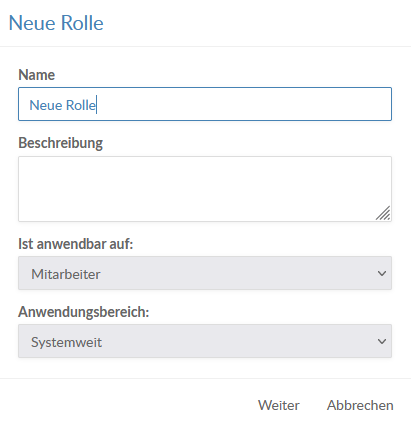
Anwendungsbereich Beschreibung Unternehmensweit Provides administrative privileges to the entire organization (all business units). This scope only differs from System-wide in firms utilizing business units.
Assignable only at the Staff level.
Systemweit
Provides administrative and content privileges to an entire Cloud site (one business unit). This scope only differs from Organization-wide in firms utilizing business units.
Assignable only at the Staff level.
Content within entities Provides content privileges to an individual entity.
Assignable only at the Entity level
System-wide or content within entities Provides content privileges to all entities (staff level) or individual entities (entity level) in a Cloud site (one business unit).
Assignable at the Staff or Entity level.
-
Wählen Sie Weiter.
-
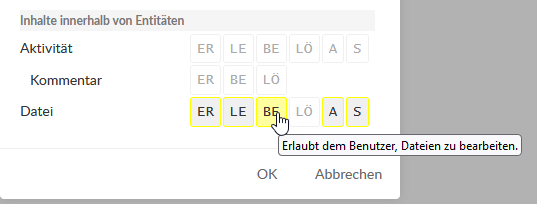
Select which permissions to add to the role. When you are finished, select OK.
Hinweise:
-
There are two Share permissions: A and S. The Share (A) permission allows the user to share all available entity or entity content permissions to themselves and other users, even if it would grant them a higher level of access than they currently possess.
For example, if you create a custom system-wide role that has only the Share (A) permission for entities, users with this role will be able to grant themselves and other users the Owner role on any entity.
If this is a security concern for your firm, we recommend using the Share (S) permission instead, which offers the same functionality but restricts the user from sharing entities or entity content that they cannot access. Weitere Informationen zu Vorgegebenen Rollen.
-
Cloud Security roles do not currently include dedicated permissions for enabling or disabling Cloud Protection. If users have the role and Assign/Share permissions required to manage files, they may be able to disable Cloud Protection.
-